Connected apps
See which AI apps are connected with OAuth sign-in, and disconnect them.
On this page
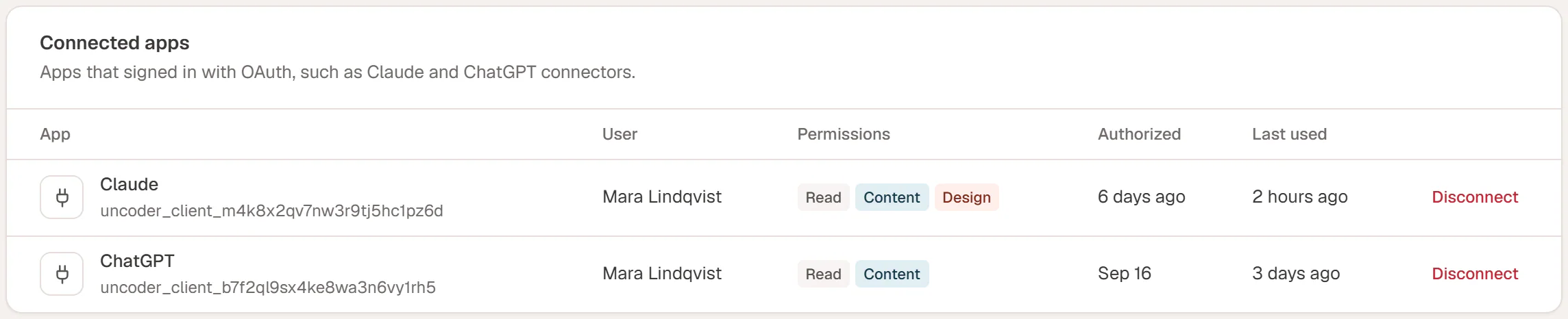
When you add your site to an AI app that signs in, such as the Claude app or ChatGPT, and click Approve, the app is listed under Connected apps. From here you can see who connected it, what it may do and when it was last used, and disconnect it.
Apps that use an API key are not listed here. You manage those under API keys.
What the table shows
| Column | Meaning |
|---|---|
| App | The name the app registered with (for example Claude), and its technical client ID below it. |
| User | The WordPress user who approved it. The app acts as this user. |
| Permissions | What the user allowed on the approval screen: Read, Content, Design, Site. See What each permission allows. |
| Authorized | When access was first approved. |
| Last used | When the app last connected. |
The number next to the tab name counts the connected apps.
If several people on your team connect the same app, it appears once per person.
Disconnect an app
- Go to Urmi → AI & MCP → Connected apps.
- Click Disconnect next to the app.
- Confirm with Disconnect.
The app loses access for that user immediately. Nothing else changes: the pages and designs it made stay as they are, and its entries stay in the activity log. The person can connect again later by adding the connector and signing in.
How access stays fresh
After you approve an app, it receives short-lived access that it renews automatically while you use it. If an app is not used for 30 days, its access runs out and you are asked to sign in again. You never have to paste anything.
If Urmi sees an old sign-in token being used a second time, which can mean it was copied, it disconnects that app for that user as a precaution. The activity log shows an entry with the status Revoked when this happens.
Stop new apps from connecting
To allow only the apps that are already connected, turn off Dynamic client registration in Server settings. New connectors can then no longer register with your site.
To disconnect everything at once, turn off the MCP server with the Server enabled switch at the top of the screen. Connected apps are kept and work again when you turn it back on.