Template
Show a saved section on this page, with its component properties.
On this page
The Template widget places a saved section on a page. You design the section once, in the Theme Builder, and use it wherever you like: a call to action, a newsletter block, a pricing table. When you edit the section, every page that shows it updates. Sections with component properties go further: each copy can change its own text, images and links while the design stays in sync.
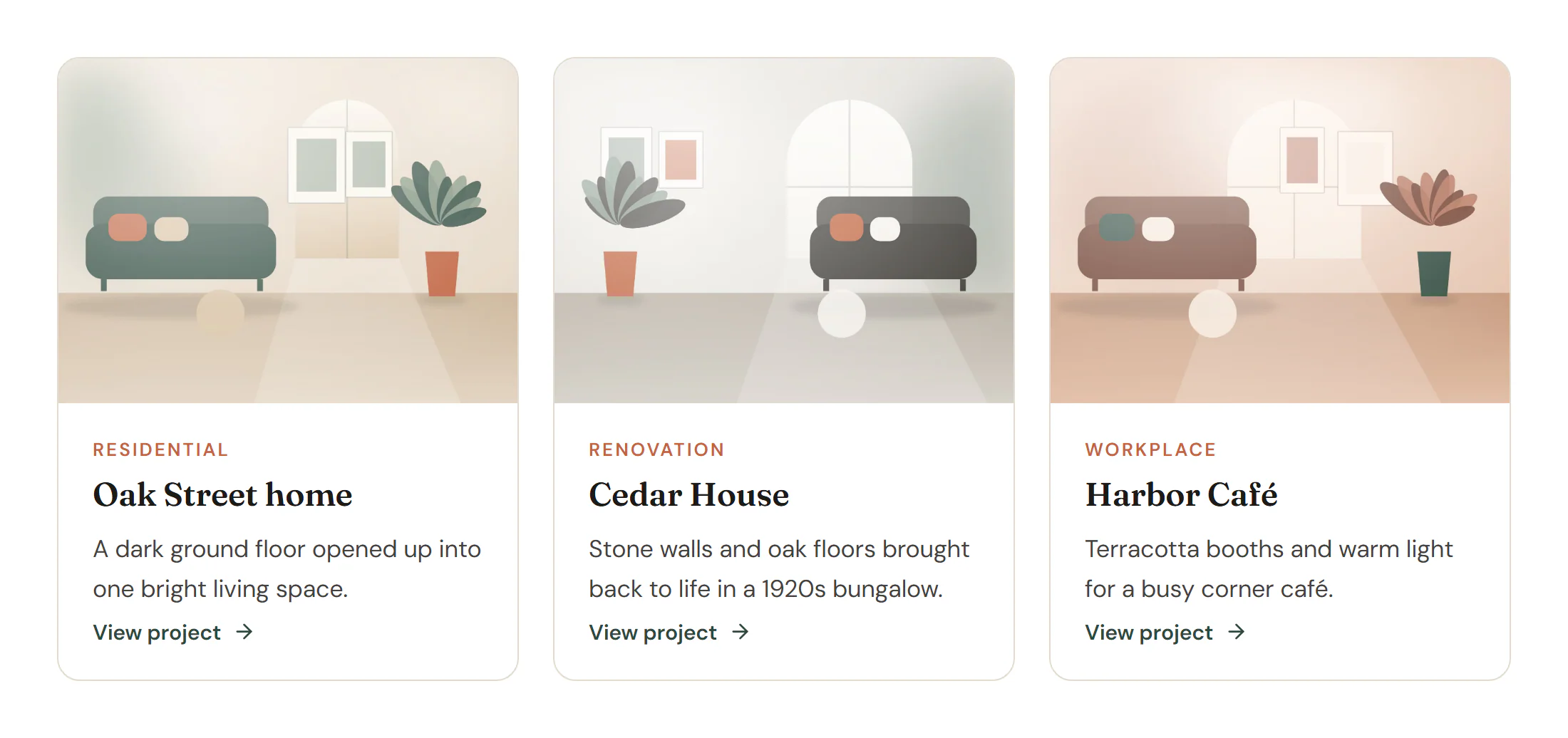
Add a saved section to a page
Save a section first
Right-click a container on any page and choose Save as template, or create one in Urmi → Theme Builder → Saved sections. See Saved sections.
Insert the widget
Open Insert in the left panel, find Template under Layout (or type
templatein Search widgets) and click it or drag it onto the canvas.Pick the section
In Content → Template, choose it in Section template. On the canvas, a bar on the section shows its name and an Edit template link, which opens the section in a new tab.
Change the content of one copy
A saved section can expose some of its settings as component properties. Open the section itself in the editor, go to the fourth tab of the left panel (Section) and use Component properties: select an element, pick one of its settings in Expose a setting of … and click Add. Give each property a clear name, such as “Title” or “Image”.
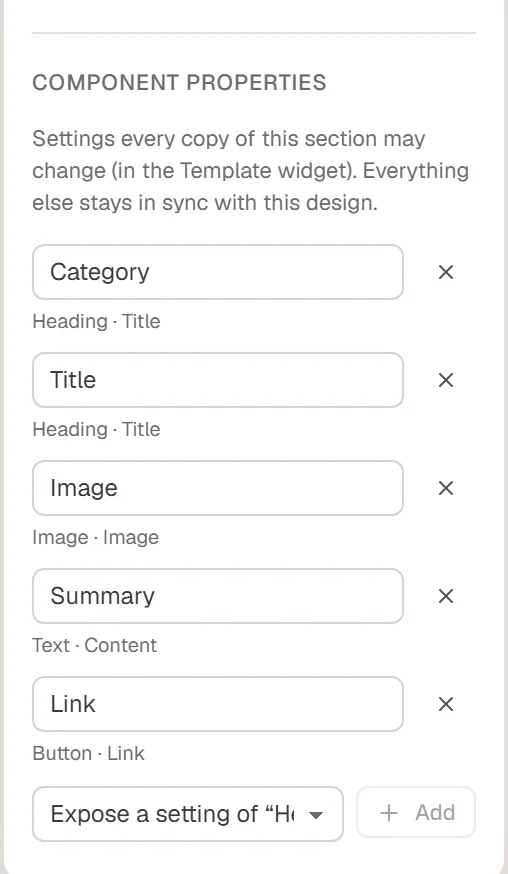
Back on the page, select the Template widget: Content of this copy lists those properties. Whatever you type there changes only this copy; properties you leave empty keep the section's own content. Everything else, such as layout and styles, stays linked to the section. See Components.
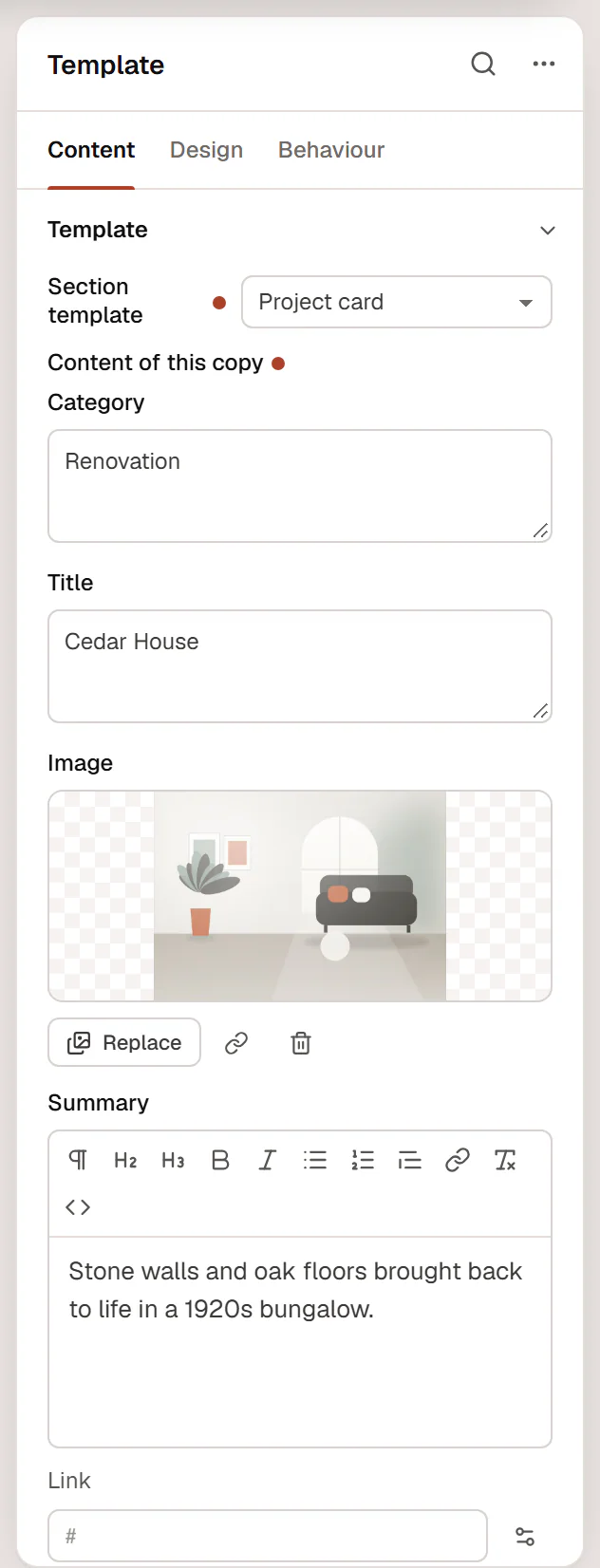
Settings
Content tab
| Setting | What it does |
|---|---|
| Section template | The saved section to show. The list holds every section in Theme Builder → Saved sections. |
| Content of this copy | Appears when the section has component properties: change the texts, images, links and other properties of this copy only. Properties you leave empty keep the section’s own content. Shown when Section template is set. |
Create sections in Urmi → Theme Builder → Saved sections, or right-click a section in the builder → Save as template. Changes to the template show everywhere it is used.
Design tab
Every element also has these sections at the end of the Design tab.
| Section | What it does |
|---|---|
| Spacing & position | Margin, padding, width, alignment in its container, order, position (relative, absolute, fixed), offsets, z-index and global classes. See Spacing, size & position. |
| Background & border | Background, border, border radius, box shadow, overflow and opacity of the whole element. See Colors & backgrounds and Borders & shadows. |
| Mask | Crops the element to a shape (circle, arch, blob, star…) or your own SVG or PNG. See Shape dividers & masks. |
Behaviour tab
The Behaviour tab is the same for every element.
| Section | What it does |
|---|---|
| Anchor & classes | An Anchor ID for #links and your own CSS classes. |
| Animations | Entrance, scroll, hover and loop animations from presets or your own timeline. See Motion & effects. |
| Motion & effects | A simple entrance animation, transforms (also on hover), CSS and backdrop filters, and sticky positioning. |
| Scroll & mouse effects | Movement, rotation, scale, fade and blur while the page scrolls, and pointer effects (follow the pointer, 3D tilt). |
| Visibility | Hide the element on desktop, tablet or mobile, or in dark or light mode. See Visibility. |
| Conditions | Show the element only when rules match, such as logged-in visitors, a date range or a URL parameter. See Display conditions. |
| Interactions | Show, hide or change other elements when this one is clicked, hovered or scrolled into view. See Interactions. |
| Attributes | Custom HTML attributes for this element. See Anchor, classes & attributes. |
Tips
- Edit the source, not the copy. Changes to the layout or style of a placed section are made in the section itself (Edit template). They show on every page that uses it.
- Use a shortcode elsewhere. In Theme Builder → Saved sections, Copy shortcode gives you a shortcode for the same section, for places outside Urmi pages, or for the Shortcode widget.
- Dynamic content. Dynamic tags inside a saved section show the data of the page it is placed on, such as that page's title.
- One job per section. Small, focused sections (a CTA, a card, a banner) are easier to reuse than a whole page section with many parts.