Custom fields
Display custom fields, ACF and Meta Box fields with dynamic tags.
On this page
Custom fields store extra information about a post: the price of a product, the size of a room, the client of a case study, a second image. Urmi shows them with dynamic tags, so you can place a field anywhere in a design, and hide or show elements depending on a field with display conditions. It works with plain WordPress custom fields, with Advanced Custom Fields (ACF) and with Meta Box.
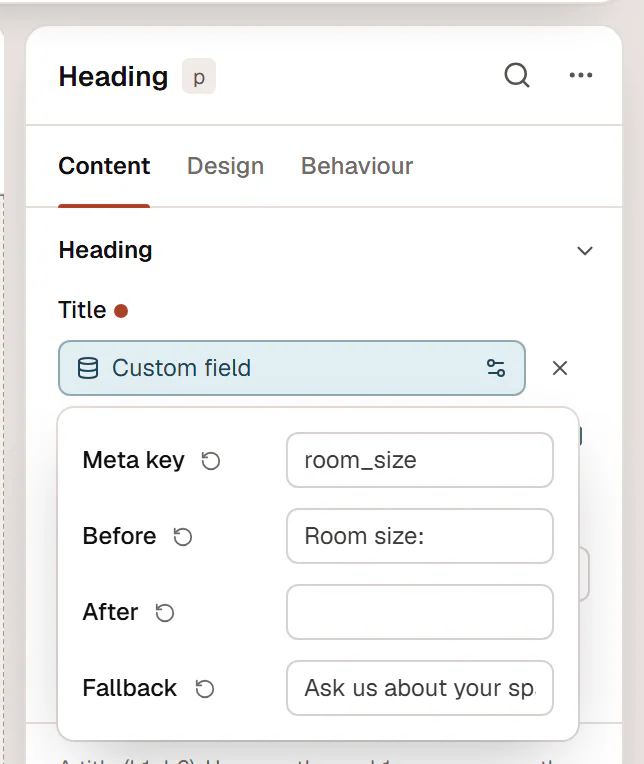
Show a custom field
Select the element
Select a Heading, Text, Button, Image or any widget with a setting that accepts dynamic data.
Pick the tag
Click the database icon next to the setting and choose Custom field (or ACF field / Meta Box field) in the Post group.
Choose the field
Click the chip to open its settings. For Custom field, type the field's Meta key, for example
room_size. For ACF and Meta Box, pick the field from the Field list.Add text around it
Use Before and After for labels such as
Room size:andm², and Fallback for posts where the field is empty.
The field is read from the post the element is shown for: the page itself, the post of a single template, or each post of a loop.
WordPress custom fields
The Custom field tag reads any custom field by its key. It returns text, a number, a link or an image address, so it can fill text, link, image, number and color settings.
- Use lowercase keys made of letters, numbers, dashes and underscores, like
room_sizeorproject-client. The key you type is read in lowercase. - Protected fields, whose key starts with an underscore (
_edit_lock,_thumbnail_id…), are never shown. - When ACF is active, Custom field also reads ACF fields by their name.
Advanced Custom Fields (ACF)
With ACF active, the ACF field tag appears. Its Field list shows every field as "Field group › Field label", and From chooses where the value is read from:
| From | Reads the field of |
|---|---|
| Current post | The post or page being shown (or the loop item). |
| Current category / term | The category, tag or term archive being viewed. |
| Post author | The author of the post (user fields). |
| Options page | An ACF options page, for site-wide values such as a phone number. |
Layout fields that hold no value of their own (tab, message, accordion, group, repeater, flexible content and clone) are not listed.
Meta Box
With Meta Box active, the Meta Box field tag appears. Its Field list shows every field as "Meta box › Field name". From offers Current post, Current category / term and Post author.
How values are shown
ACF and Meta Box fields are turned into something a widget can show, based on the field type:
| Field type | Shown as |
|---|---|
| Image, gallery | The image (a gallery shows its first image). Use it on an Image widget or a background. |
| File | The file's address. Use it on a button link, for example "Download the brochure". |
| Link, page link, URL, oEmbed | The address. |
| True / false | "Yes" or "No". |
| Select, checkbox, radio, button group | The labels of the chosen options, separated by commas. |
| Relationship, post object | The titles of the linked posts (drafts and private posts only for people who may read them). |
| Taxonomy | The names of the terms. |
| User | The user's display name. |
| Password | Never shown. |
| Anything else | The value as text; lists are joined with commas. |
The fields of a password-protected post stay hidden like its content.
Show or hide elements by a field
To show an element only when a field has a value, or when it matches something, add a Custom field rule in Behaviour → Conditions. Type the field name and choose exists, does not exist, is, is not, contains, greater than or less than. For example, show a "Sold out" badge when stock less than 1. See Display conditions.
For ACF fields, the Dynamic value rule is not available (field tags have options); use the Custom field rule with the field's name instead.