Author Box
The author of the current post with their avatar, name, bio and links.
On this page
The Author Box widget introduces the person who wrote a post: their profile picture, their name linked to all their posts, a short biography and, optionally, a link to their website. Place it at the end of your blog post template so readers know who is behind each article.
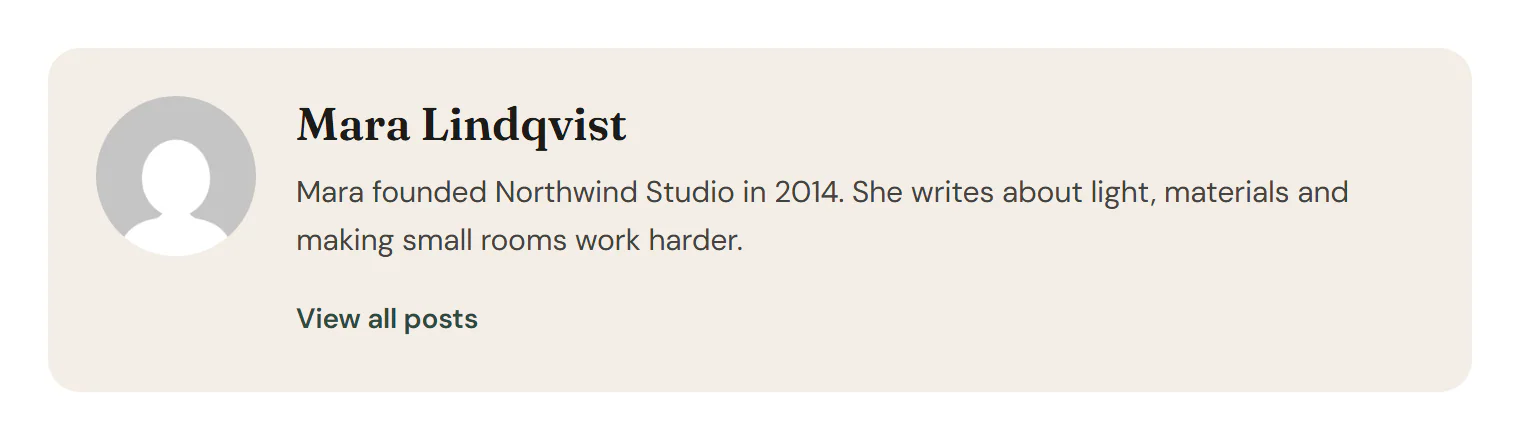
Where the author details come from
Everything comes from the author's WordPress profile, in Users → Profile (or Users → All Users → Edit):
- Name: the Display name publicly as choice.
- Biography: Biographical Info.
- Website link: Website.
- Avatar: the profile picture WordPress shows for that user, which comes from Gravatar by default.
On a blog post, the box shows the post's author. On an author archive, it shows that author. In the editor, it shows the author of the post chosen in Preview with on the Template tab of the left panel.
Add an Author Box
Open your blog post template in the Theme Builder. Then open Insert in the left panel, find Author Box in the Site & theme group (or type "author" in the search box) and drag it below the post content. See Add elements.
Content tab settings
| Setting | What it does |
|---|---|
| Avatar position | Left, Top or Right. Default: Left. Can differ per device; Top suits narrow columns on phones. |
| Avatar | Shows the profile picture. On by default. |
| Name | Shows the author's name. On by default. |
| Name HTML tag | H1 to H6, DIV, SPAN or P. Default: H4. Shown when Name is on. |
| Link name to the author's posts | Links the name to the author archive. On by default. Shown when Name is on. |
| Biography | Shows the biographical info. On by default. |
| Website link | Shows a link to the author's website. |
| Website link text | Default: Visit website. Shown when Website link is on. |
| All posts link | Shows a link to the author archive. |
| All posts link text | Default: View all posts. Shown when All posts link is on. |
| Text alignment | Left, Center or Right. Can differ per device. |
Design tab settings
| Section | Settings |
|---|---|
| Box | Background, Border, Border radius, Padding, Shadow. |
| Avatar | Size, Spacing, Border radius, Border. Shown when Avatar is on. |
| Name | Typography, Color, Hover color, Spacing. Shown when Name is on. |
| Biography | Typography, Color. Shown when Biography is on. |
| Links | Typography, Color, Hover color, Spacing. |
The Design tab also has the sections every element shares: Spacing & position, Background & border and Mask. See Spacing, size & position.
Behaviour tab
The Behaviour tab has the settings every element shares: anchor and classes, entrance animations, motion effects, visibility per device, display conditions and interactions. See Visibility.
Tips
- Ask every author to fill in their biography. The box looks unfinished with only a name.
- On an author archive template, put the Author Box at the top instead of the Archive Title for a friendlier introduction.