Notes
Leave notes on elements for yourself or your team, and resolve them when done.
Notes are short comments pinned to an element: "swap this photo", "check the price", "approved". Everyone who can edit the page sees them in the editor. Visitors never do.
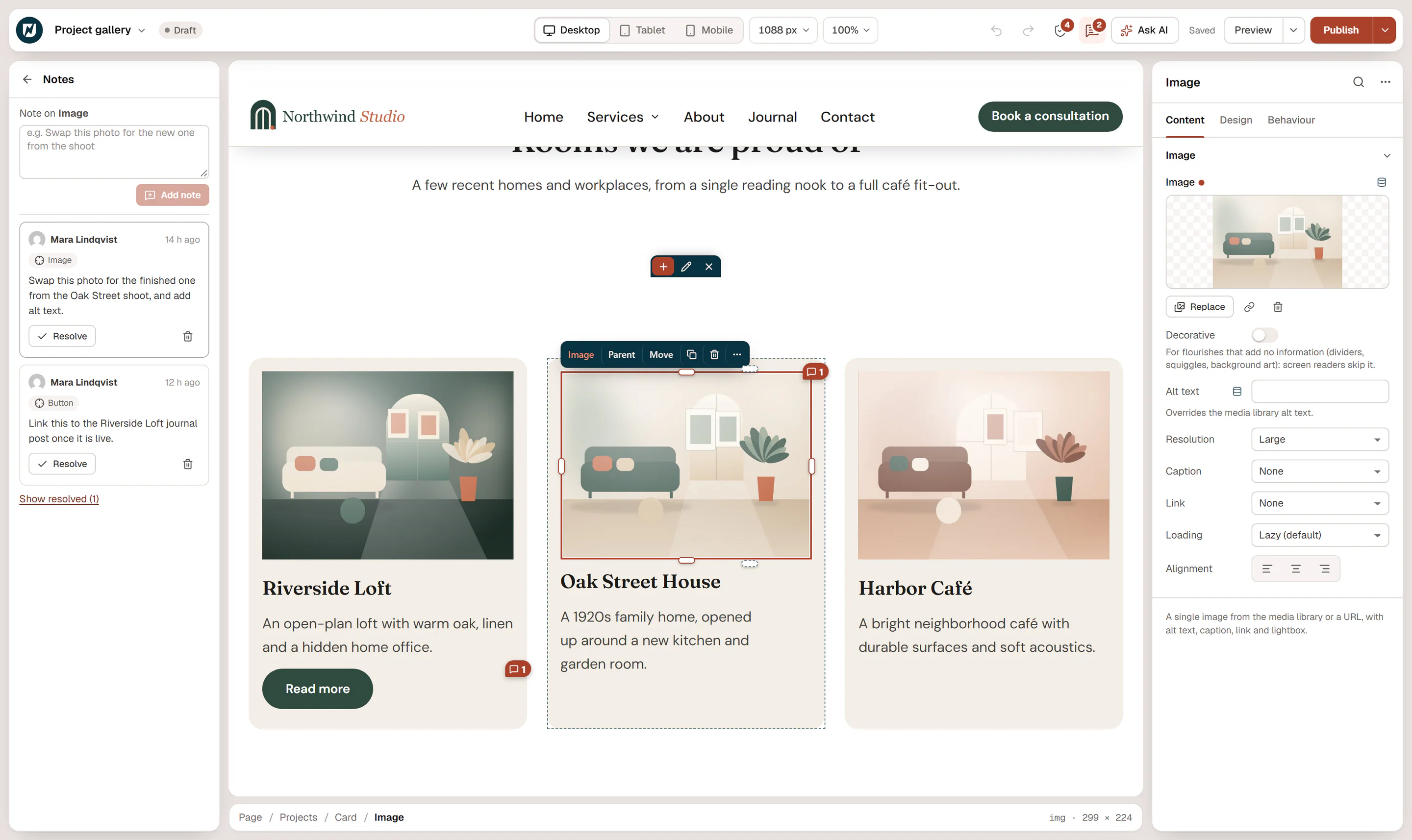
Add a note
Pick the element
Right-click the element on the canvas or in Layers and choose Add note…. Or click Notes (the speech bubble) in the top bar and then select an element.
Write the note
Type your note in the box under Note on …, for example Swap this photo for the new one from the shoot.
Save it
Click Add note, or press Ctrl+Enter (⌘+Enter on a Mac).
Notes are saved right away, without saving the page. They are stored with the page and are never shown on your live site.
See the notes on a page
- The Notes button in the top bar shows how many notes are still open.
- On the canvas, an element with open notes gets a small bubble with the count. Click it to select the element and open the notes.
- In Layers, the element's row shows a speech bubble.
Each note shows who wrote it and when, and a button with the element's name. Click it to select that element on the canvas. If the element was deleted, the button reads Deleted element.
Resolve, reopen or delete
- Click Resolve when a note is done. It moves out of the list, and the count goes down.
- Click Show resolved at the bottom to see resolved notes again, and Reopen to bring one back.
- Click the trash icon (Delete note) to remove a note for good. You can delete your own notes; editors and administrators can delete anyone's.
Notes cannot be edited after you add them. Resolve or delete the note and write a new one.
When there are no open notes, the panel says No open notes. Notes are for your team: everyone who can edit this page sees them; visitors never do.