Overview
Design every part of your theme: headers, footers, single posts, archives and more.
On this page
The Theme Builder lets you design the parts of your site that are not a single page: the header and footer, the layout of every blog post, category and search pages, the 404 page, popups, and reusable pieces such as saved sections, post cards and mega menus. You design each one in the same editor as your pages, then choose where it appears. It works with any theme, classic or block: Urmi's templates replace the theme's own parts only where you tell them to.
Template types
| Type | What it is for | How it is placed |
|---|---|---|
| Header / Footer | The top and bottom of your site: logo, menu, contact details, legal links. | Display conditions |
| Single post / Single page / Single (custom post type) | The layout around the content of each post, page or custom post type item. | Display conditions |
| Archive | Blog, category, tag, author and date pages. | Display conditions |
| Search results | The page that lists search results. | Display conditions |
| 404 page | What visitors see when a link is broken. | Display conditions |
| Popup | A modal, slide-in, bar or full-screen panel opened by triggers or links. | Display conditions and triggers |
| Section (Saved sections) | A reusable block for pages. | Template widget, Insert panel or shortcode |
| Loop item | The card repeated for every post in a Loop Grid or Loop Carousel. | Chosen in the widget |
| Mega menu | A rich dropdown panel for a menu item. | Attached to a menu item |
Create a template
Open the Theme Builder
Go to Urmi → Theme Builder.
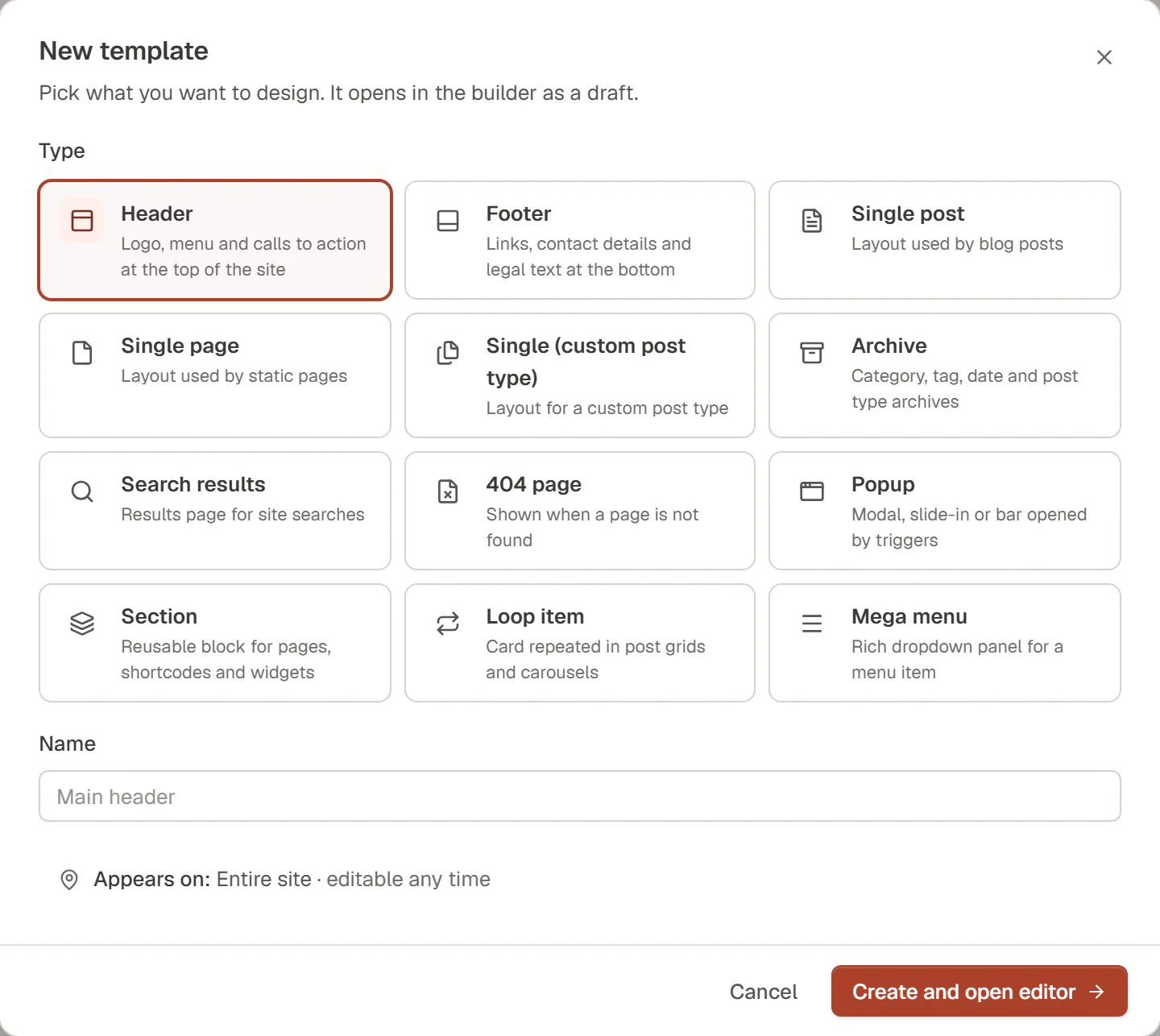
Start a new template
Click New template. Choose the Type, give it a Name and click Create and open editor. Inside a section of the list, the button is named after that type (for example New popup) and preselects it.
Design it
The template opens in the editor as a draft. Build it like a page. Templates that show posts, such as single post layouts and loop items, use dynamic tags and theme widgets such as Post Title and Post Content.
Publish it and choose where it appears
Click Publish. Most types start with sensible conditions (a header on the Entire site, a single post layout on all posts); the New template dialog shows them under Appears on:. If a template has none when you publish it, Urmi asks Where should this … appear? right away.
Nothing changes on your live site until a template is published and has display conditions.
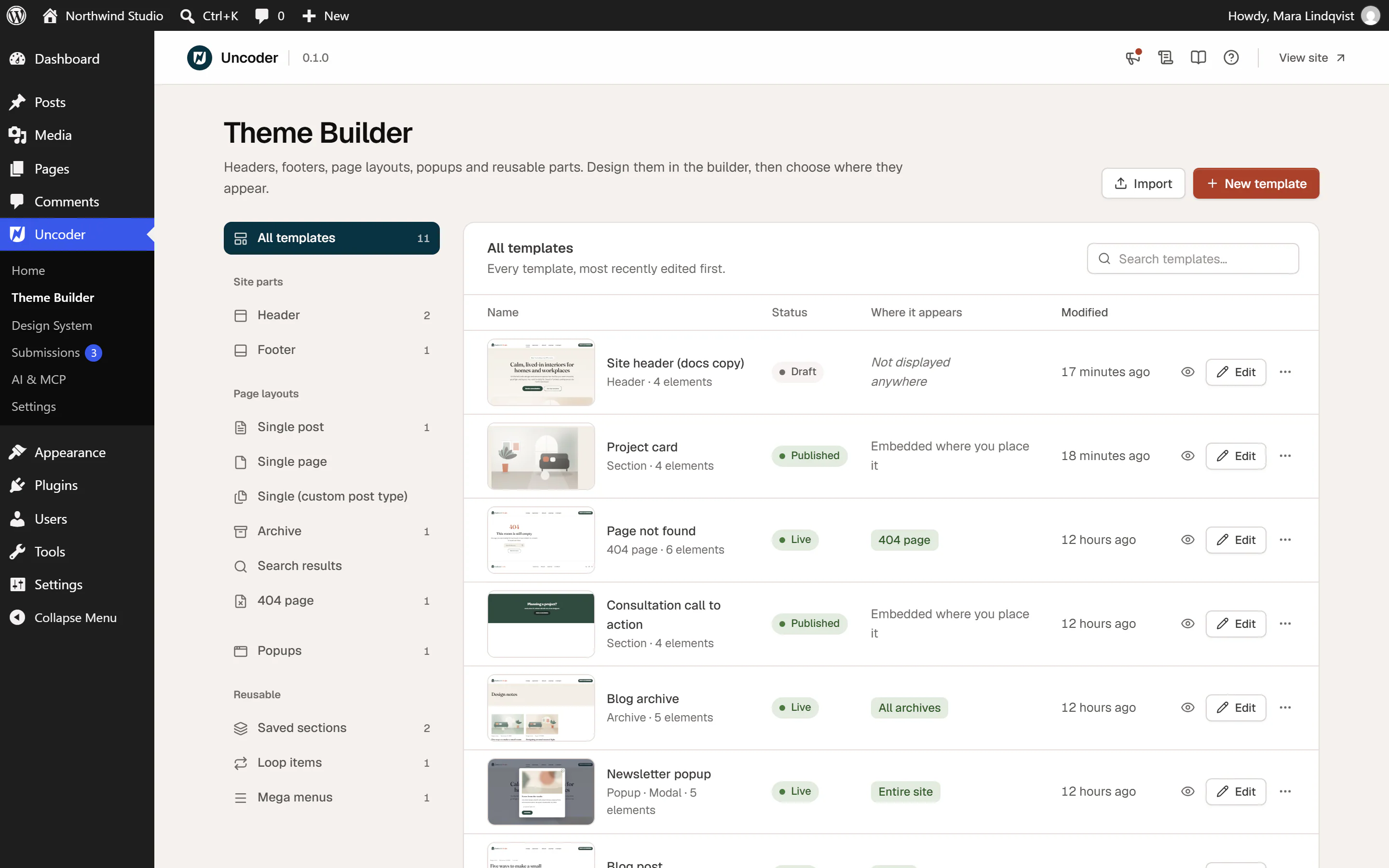
The Theme Builder screen
- Template types on the left filters the list: All templates, then Site parts (Header, Footer), Page layouts (Single post, Single page, Single (custom post type), Archive, Search results, 404 page), Popups and Reusable (Saved sections, Loop items, Mega menus).
- Each row shows a live thumbnail, the Status, Where it appears (or the Shortcode of saved sections, or what opens a popup) and when it was last Modified. Click the thumbnail or the eye icon for a live preview.
- Status is Draft, Live (published and shown by its conditions), Not shown (published but without conditions) or Published for types placed by reference.
- Edit opens the template in the editor. The ⋯ menu has the other actions: preview, popup settings, display conditions, copy links or shortcodes, publish or unpublish, duplicate, export and move to trash. See Preview & manage templates.
- Import brings in templates exported from another site. See Import & export templates.
When no header or footer is live yet, a note reminds you that your theme's own are used.
Which template is used
For each part of a page (the header, the footer, the body layout) Urmi picks one published template:
- The template whose include condition is the most specific wins. A template for the Contact page beats one for the entire site.
- When two are equally specific, the most recently edited one wins.
- A matching exclude condition takes a template out for that page; the next best template, or the theme's own part, is used instead.
- When no template matches, the theme's own header, footer or layout stays.
Some pages can use more than one type. A blog post uses a Single post template, or a Single (custom post type) template when there is no single post layout for it. Search results use a Search results template, or else an Archive template whose conditions include search results. See Template conditions for every rule.
Who can use it
Headers, footers, page layouts, popups, loop items and mega menus change the whole site, so they need theme permissions (administrators have them). Editors and authors see only Saved sections in the Theme Builder. See Roles & access.