Post Title
The title of the current post or page, for templates and loop cards.
On this page
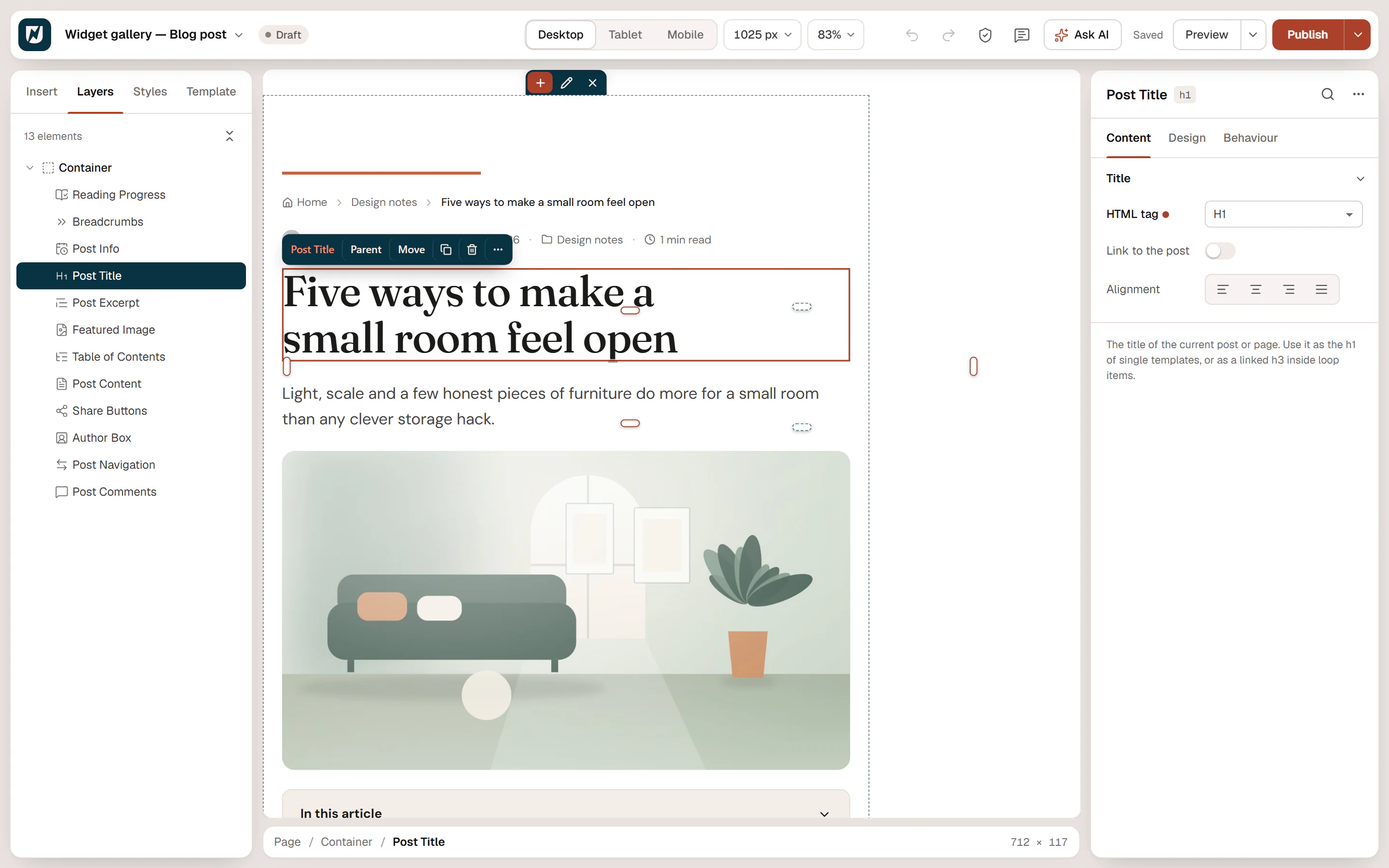
The Post Title widget shows the title of the post or page being viewed. Use it as the main heading (H1) of your single post and page templates, and as a linked title in Loop item cards, where each card shows its own post's title.

Where the title comes from
The title is the one you type when you edit the post or page in WordPress. Change it there, and every template and card that shows it updates.
Add a Post Title
Open your single post or page template, or a Loop item, in the Theme Builder. Then open Insert in the left panel, find Post Title in the Site & theme group (or type "title" in the search box) and drag it into the template. See Add elements.
In the editor, the template shows a real post so you can see your design with real content. Choose which post in Preview with on the Template tab of the left panel; when it is empty, the latest post is used.
Use it in a card
In a Loop item card, set HTML tag to H3 (or H2) and turn on Link to the post. The page then keeps a single H1, and each card's title leads to its post.
Content tab settings
| Setting | What it does |
|---|---|
| HTML tag | H1 to H6, DIV, SPAN or P. Default: H1. Use H1 in single templates and H2 or H3 in loop cards. |
| Link to the post | Makes the title a link to the post. Off by default. |
| Open in a new tab | Opens the link in a new tab. Shown when Link to the post is on. |
| Alignment | Left, Center, Right or Justify. Can differ per device. |
Design tab settings
| Section | Settings |
|---|---|
| Title | Typography, Color, Link hover color (when linked), Max width, Text wrap (Balanced evens out line lengths, Pretty avoids a single word on the last line), Text shadow, Text stroke and Stroke color (an outline around the letters). |
The Design tab also has the sections every element shares: Spacing & position, Background & border and Mask. See Spacing, size & position.
Behaviour tab
The Behaviour tab has the settings every element shares: anchor and classes, entrance animations, motion effects, visibility per device, display conditions and interactions. See Visibility.
Tips
- If your pages already have a title in their design, turn on Hide page title in the page settings so the theme does not show a second one. See Page settings.
- The same title is also available as the Post title dynamic tag, for example inside a Heading or Button. See Dynamic tags.