Server settings
Allowed roles, rate limit, connections, undo snapshots, image search and other MCP server options.
The Server settings tab controls who may connect AI apps, how fast they may work and which safety features are on. The defaults suit most sites: the server stays off until you turn it on, only administrators can connect, and every change is saved for undo.
Go to Urmi → AI & MCP → Server settings. After changing something, a bar appears at the bottom of the screen: click Save changes, or Discard to put back the saved values.
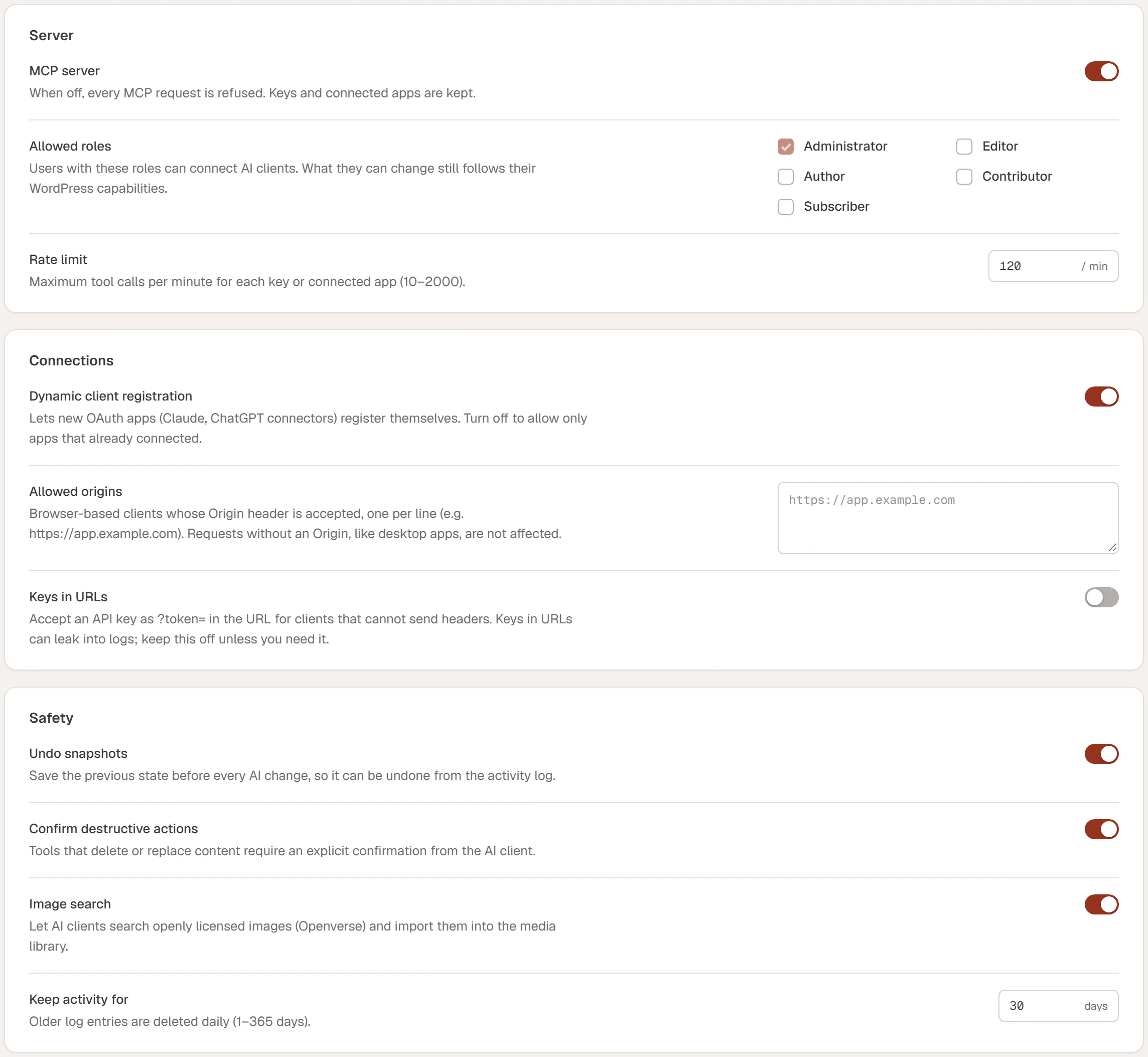
Server
| Setting | What it does |
|---|---|
| MCP server | Turns the server on or off. When it is off, every AI request is refused. API keys and connected apps are kept. This is the same switch as Server enabled at the top of the screen. Off by default: turning it on asks you to confirm, see Turn on the MCP server. |
| Allowed roles | Which WordPress roles may connect AI apps. Administrator is always allowed. What a user can change still follows their WordPress role: an Editor who connects an app can edit pages, but not the Design System. No role can manage plugins, themes, users or site settings through AI. |
| Rate limit | The most tool calls each API key or connected app may make per minute, from 10 to 2000. The default is 120. When an app goes over it, it has to wait and the call shows as Rate limited in the activity log. |
Allowed roles
Tick a role to let its users create API keys and approve AI apps. For example, allow Editor so your content team can connect Claude to write and edit pages.
Two other settings also limit what AI can do for a role:
- The permissions of each key or app (Read, Content, Design, Site). See API keys & scopes.
- Urmi's own role setting in Settings → Access & roles. A role set to Content only can connect, but AI can only read for it. A role set to No access cannot use AI at all. See Roles & access.
Rate limit
A full site build makes many calls in a row, so the default of 120 per minute leaves room for fast work while stopping a runaway script. Raise it if an app often hits the limit during large builds.
Connections
| Setting | What it does |
|---|---|
| Dynamic client registration | Lets new OAuth apps, such as Claude and ChatGPT connectors, register themselves with your site the first time you connect them. Turn it off to allow only the apps that have already connected. On by default. |
| Allowed origins | Web addresses of browser-based AI apps that may call your site, one per line (for example https://app.example.com). Desktop apps, terminal apps and connectors are not affected. Leave it empty unless an app's documentation asks you to add its address. |
| Keys in URLs | Accepts an API key in the address (?token=…) for apps that cannot send headers. Keys in addresses can end up in server logs, so keep this off unless you really need it. Off by default. |
Safety
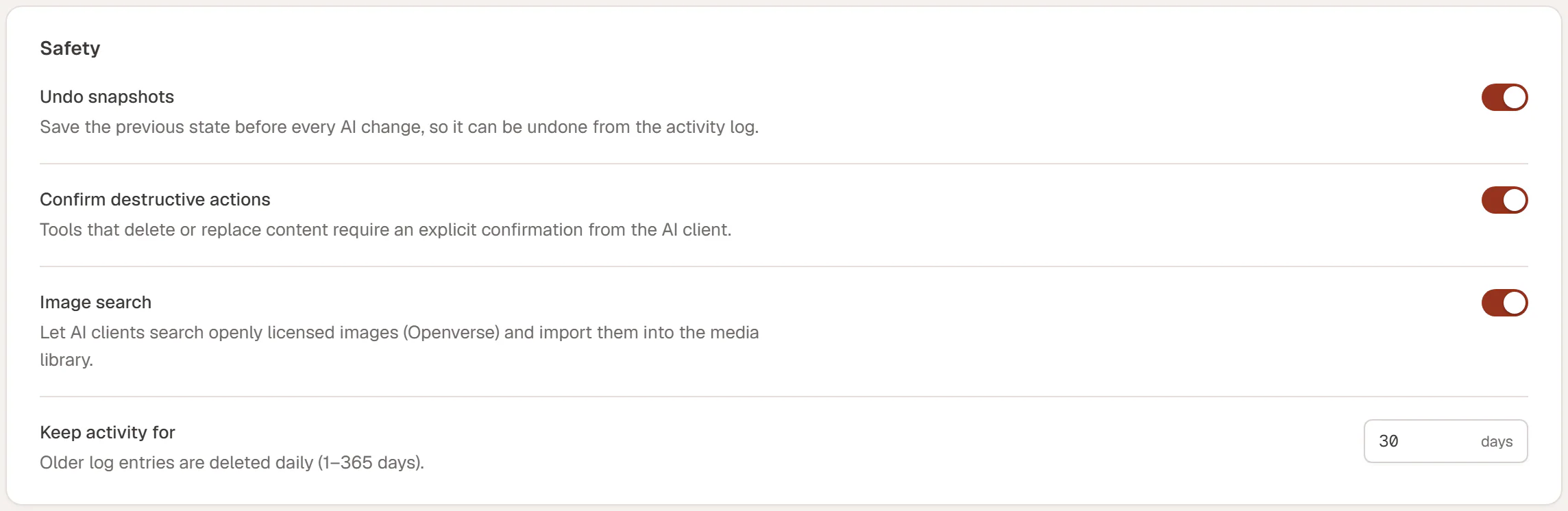
| Setting | What it does |
|---|---|
| Undo snapshots | Saves the previous state before every AI change to a page, template, popup or the Design System, so it can be undone from the activity log. On by default. Without it, AI changes cannot be undone from the log. |
| Confirm destructive actions | Asks AI apps to confirm before a tool deletes content. Urmi's AI tools cannot delete pages, posts, templates or media files at all, so they never need this confirmation. On by default. |
| Image search | Lets AI apps search openly licensed photos on Openverse (opens in a new tab) and import them into your media library, with their license and credit. Turn it off if you only want your own images on the site. On by default. |
| Keep activity for | How long activity log entries are kept, from 1 to 365 days. Older entries are deleted once a day. The default is 30 days. |
Turning off Undo snapshots makes AI mistakes harder to fix. Keep it on unless you have a reason and a recent backup.
Turn the server off
To stop all AI access at once, for example while you investigate something, turn off Server enabled at the top of the AI & MCP screen and confirm with Turn off. Every AI app is disconnected. Keys and connected apps are kept, and they work again as soon as you click Turn on.