Create a popup
Create a popup in the Theme Builder and design it in the editor.
A popup is a panel that opens over your page: a newsletter signup, an offer, a consultation booking, a notice. In Urmi a popup is a template of type Popup. You design its content in the editor like any page, then choose how it looks, what opens it, on which pages and for whom.
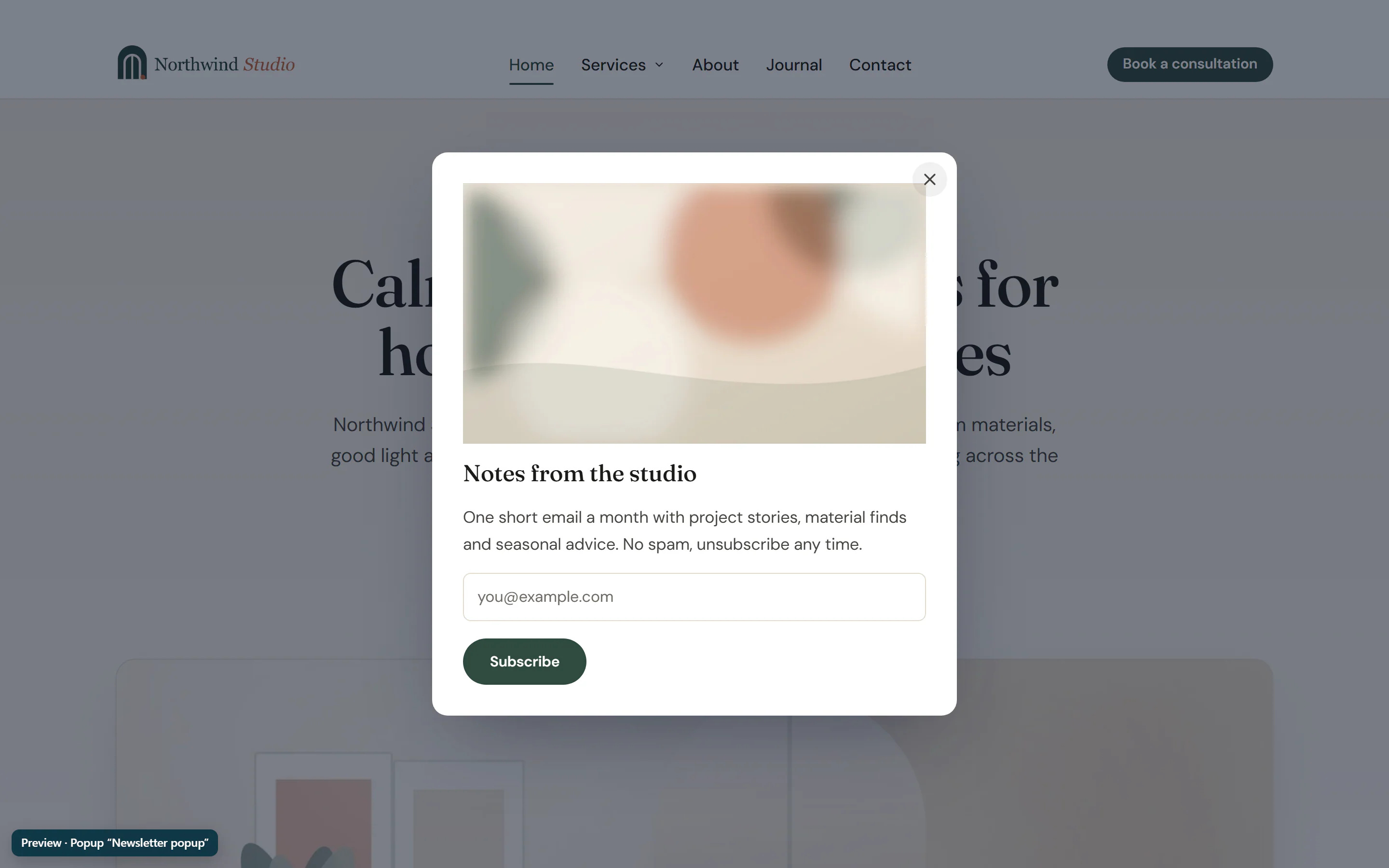
Create and design a popup
Start a new popup
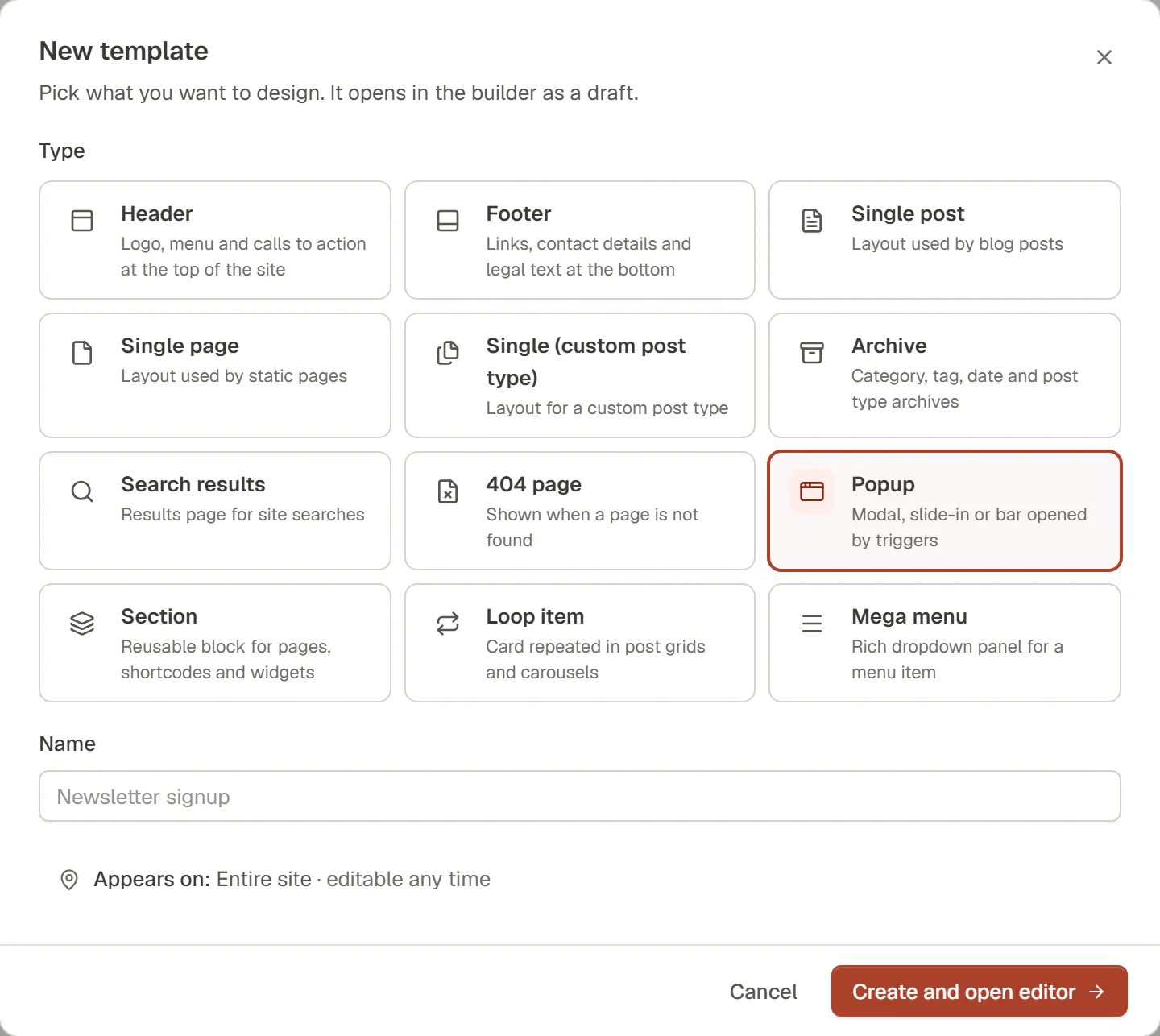
Go to Urmi → Theme Builder, open Popups and click New popup. Give it a name and click Create and open editor.
Design the content
The popup opens in the editor. Add a container with the content: an Image, a Heading, a short Text, and a Form or Buttons. A Form with only an email field makes a newsletter signup.
Set it up
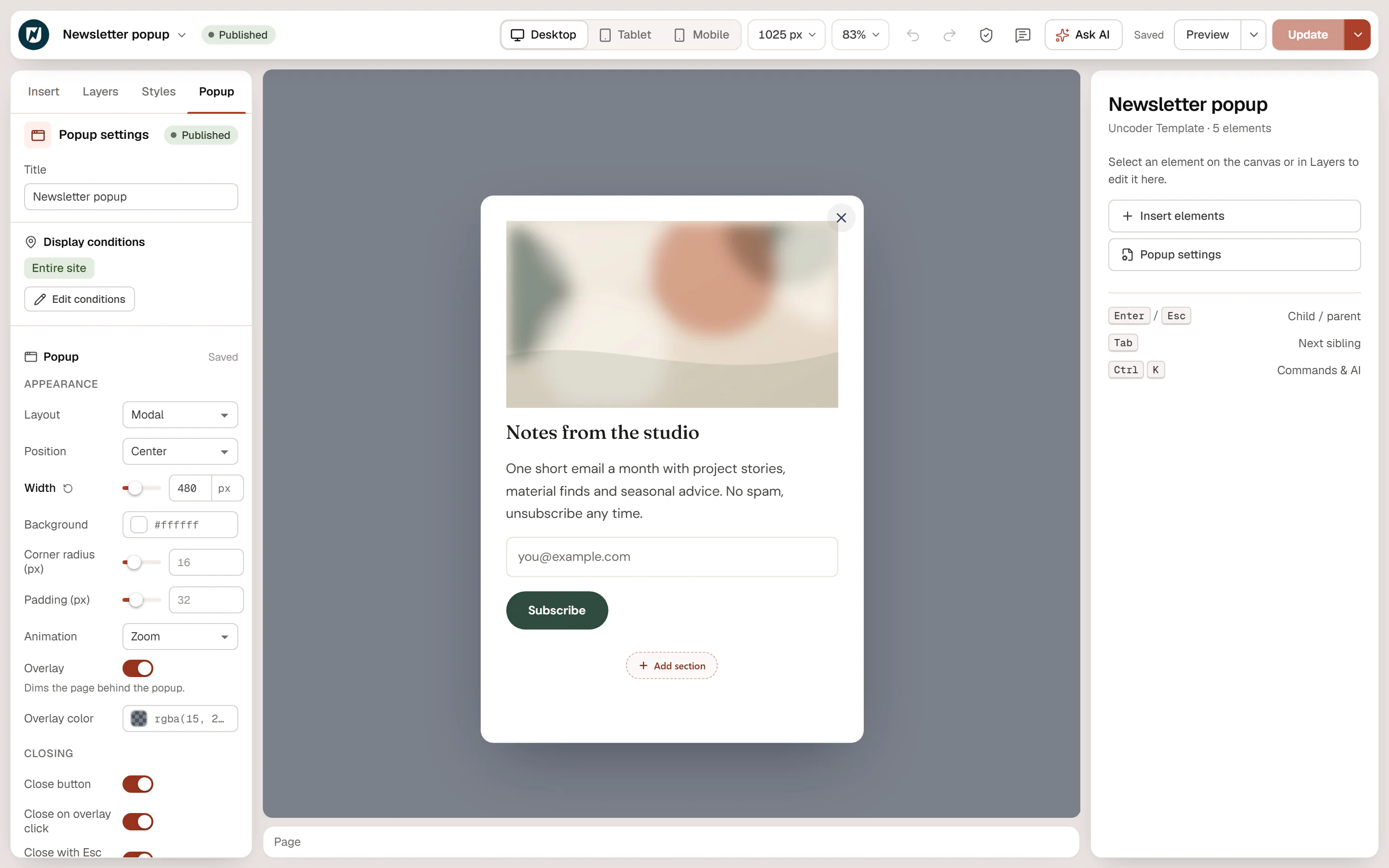
Open the Popup tab in the left panel. Choose the Layout and look, how it closes, and what opens it. Changes in this panel are saved as you make them.
Publish
Click Publish. A new popup is available on the Entire site and opens 3 seconds after a page loads, at most once a day per visitor, until you change its triggers and conditions.
Where the settings are
Popup settings are in two places, with the same values:
- In the editor, the Popup tab holds the look (Appearance), Closing, the triggers (Opens when) and how often it shows (Show it). See Layout & appearance, Triggers and Frequency & devices.
- In the Theme Builder, Popup settings… in the popup's ⋯ menu opens a drawer with all of the above plus Who sees it (Targeting) and Open from a link. Click Save changes there.
Where a popup can appear is set with its Display conditions, like any template: the entire site, some pages, all posts, and so on. See Template conditions.
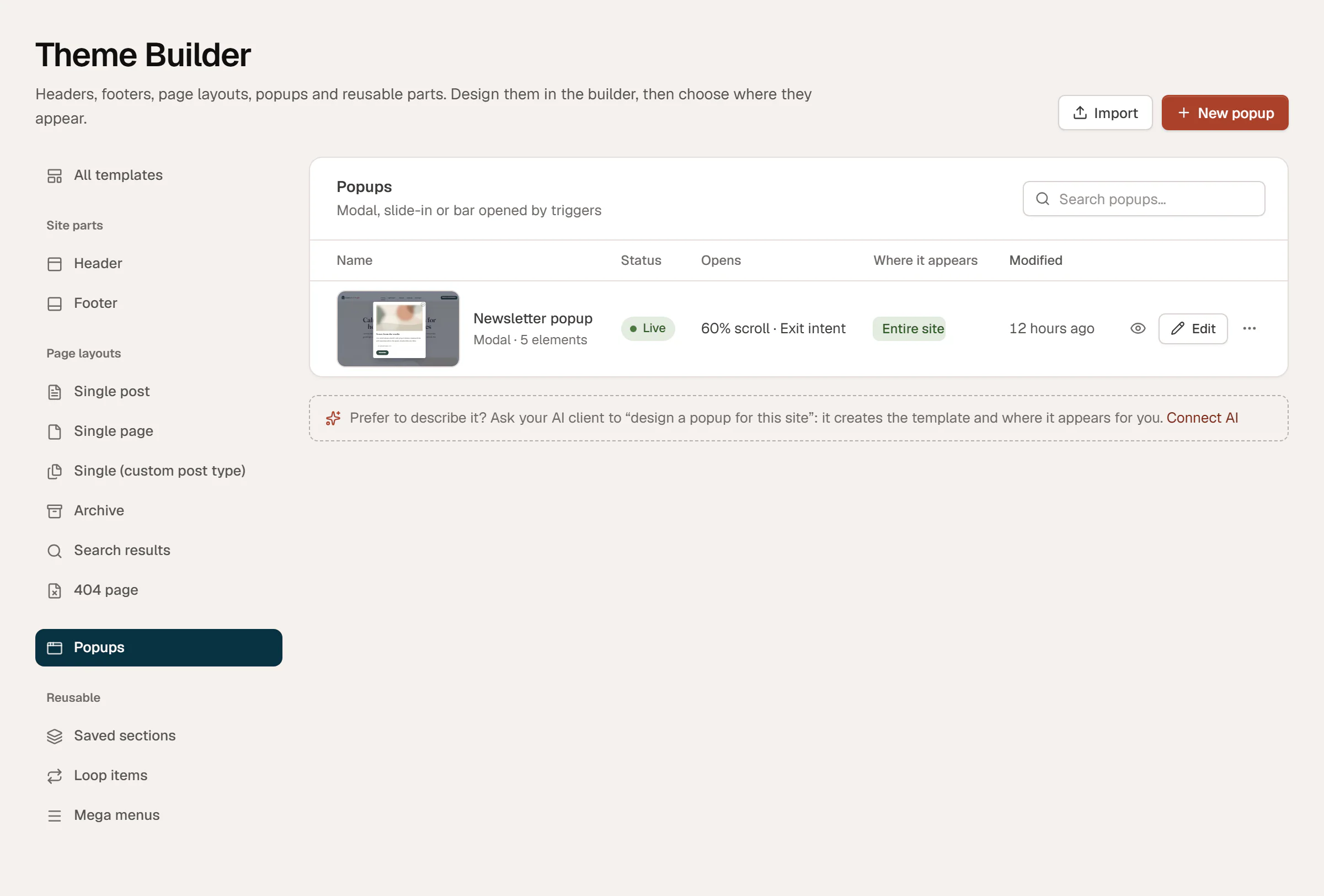
The Popups section of the Theme Builder lists every popup with its status, what opens it (Opens) and where it appears:
Test a popup
- In the Theme Builder, open the popup's Preview: it shows the home page with the popup opened at once.
- On the live site, frequency limits are remembered by the visitor's browser. To see a popup again after it opened once, use a private browser window, or set Show at most to 0 while you test.
- The popup only appears on pages that match its display conditions, and only for the visitors and devices it is set to.
Accessibility
Popups are accessible dialogs: keyboard focus moves into the popup when it opens and returns to where it was when it closes. With an overlay, the page behind cannot be scrolled and Tab stays inside the popup. Esc closes it unless you turn Close with Esc key off. Visitors who prefer reduced motion see it without animation.