Shortcode
Show a shortcode from another plugin.
The Shortcode widget runs a WordPress shortcode and shows its output on the page: a form from a forms plugin, a booking calendar, a gallery, or a saved Urmi section. Paste the shortcode exactly as the other plugin gives it to you.
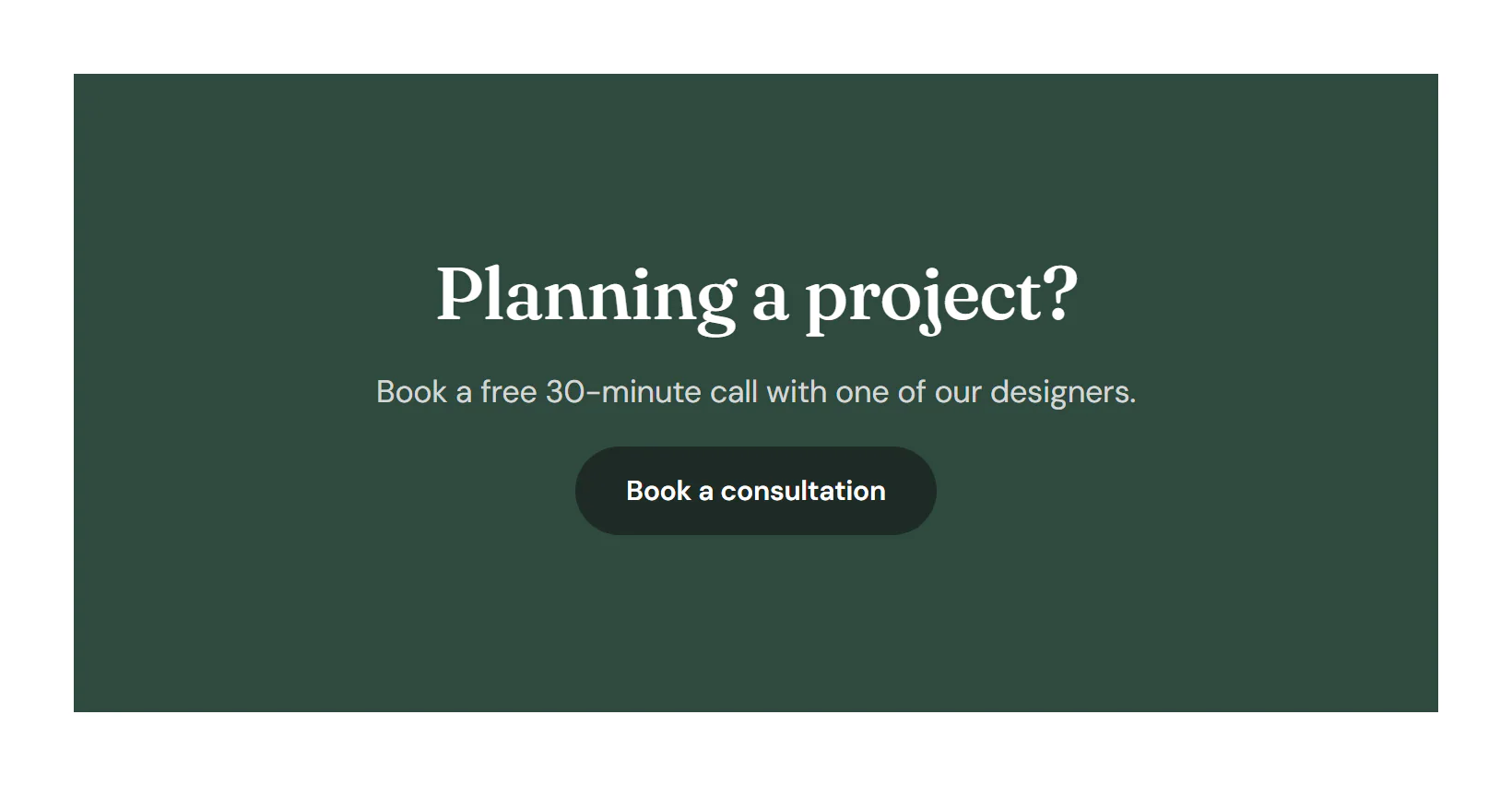
Add a shortcode
Insert it
Open Insert in the left panel, find Shortcode under Basic (or type
shortcodein Search widgets) and click it or drag it onto the canvas.Paste the shortcode
Paste it into Content → Shortcode, for example
[contact-form-7 id="12"]. The canvas shows the output as it will look on the site.
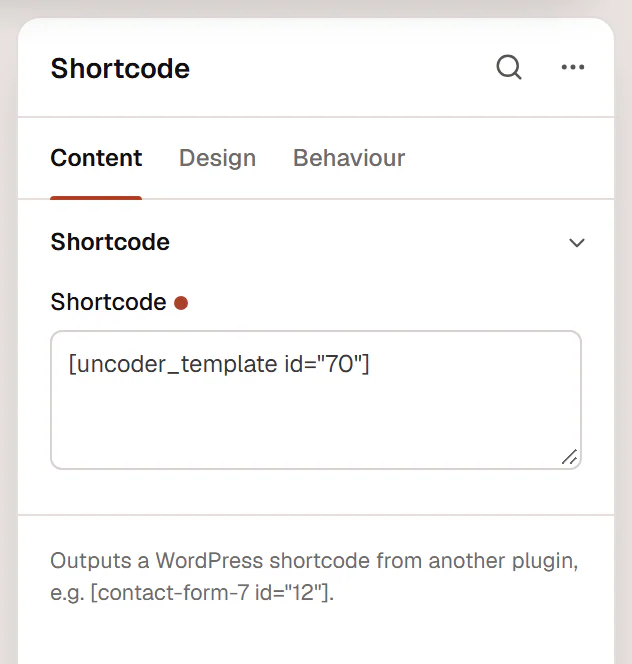
If the shortcode produces no output in the editor (some plugins only render on the live page), the canvas shows the shortcode itself as a placeholder. Check the result with Preview.
Settings
Content tab
| Setting | What it does |
|---|---|
| Shortcode | The shortcode, for example [contact-form-7 id="12"]. The editor shows its output as it looks on the site. |
Design tab
Every element also has these sections at the end of the Design tab.
| Section | What it does |
|---|---|
| Spacing & position | Margin, padding, width, alignment in its container, order, position (relative, absolute, fixed), offsets, z-index and global classes. See Spacing, size & position. |
| Background & border | Background, border, border radius, box shadow, overflow and opacity of the whole element. See Colors & backgrounds and Borders & shadows. |
| Mask | Crops the element to a shape (circle, arch, blob, star…) or your own SVG or PNG. See Shape dividers & masks. |
Behaviour tab
The Behaviour tab is the same for every element.
| Section | What it does |
|---|---|
| Anchor & classes | An Anchor ID for #links and your own CSS classes. |
| Animations | Entrance, scroll, hover and loop animations from presets or your own timeline. See Motion & effects. |
| Motion & effects | A simple entrance animation, transforms (also on hover), CSS and backdrop filters, and sticky positioning. |
| Scroll & mouse effects | Movement, rotation, scale, fade and blur while the page scrolls, and pointer effects (follow the pointer, 3D tilt). |
| Visibility | Hide the element on desktop, tablet or mobile, or in dark or light mode. See Visibility. |
| Conditions | Show the element only when rules match, such as logged-in visitors, a date range or a URL parameter. See Display conditions. |
| Interactions | Show, hide or change other elements when this one is clicked, hovered or scrolled into view. See Interactions. |
| Attributes | Custom HTML attributes for this element. See Anchor, classes & attributes. |
Tips
- Saved sections. For a saved Urmi section, the Template widget is the better choice: it shows the section's name, links to it and supports component properties.
- Styling. The plugin that owns the shortcode controls its markup. Use the Design tab's shared sections for spacing and background around it.
- Plugin turned off. If the plugin that provides the shortcode is deactivated, WordPress prints the shortcode as plain text on the page.