Preview & manage templates
Preview templates on any device, publish, duplicate, export and trash them.
The Theme Builder list shows a live thumbnail of every template, and a full preview opens with one click, drafts included, without going to the editor. From the same list you publish, duplicate, export or remove templates.
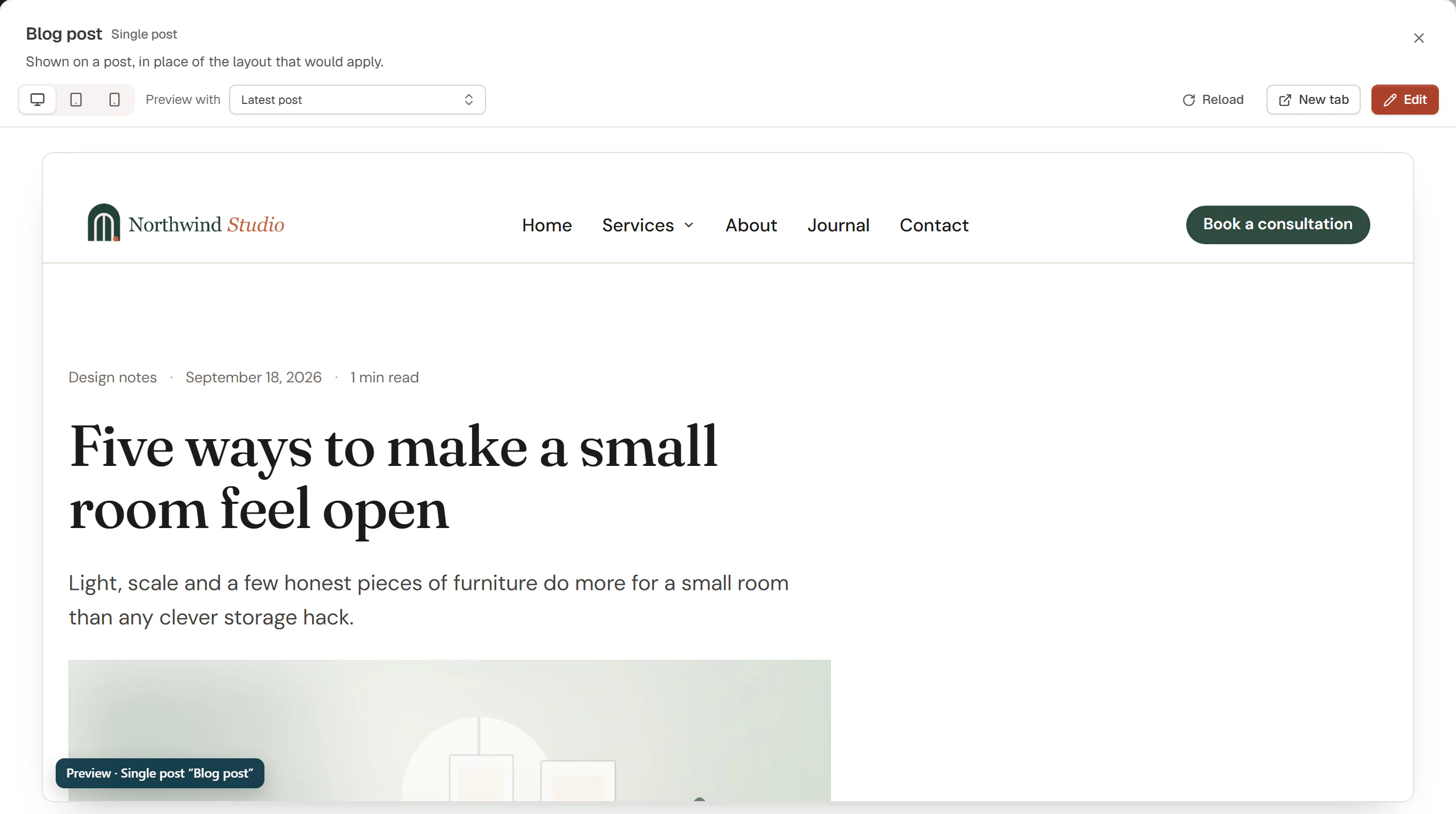
Preview a template
In Urmi → Theme Builder, click a template's thumbnail or the eye icon next to Edit. The preview shows the template live on your site, in place of the one that would normally apply:
| Template type | What the preview shows |
|---|---|
| Header / Footer | The header or footer on its own. Switch to On the home page to see it in place of the current one. |
| Single post / Single page / Single (custom post type) | A post or page in this layout. |
| Archive | The blog or an archive in this layout. |
| Search results | A search results page. |
| 404 page | A page that does not exist. |
| Popup | The home page with the popup opened at once. |
| Saved section | The section on its own, inside your theme. |
| Loop item | Three cards with your latest posts. |
| Mega menu | The menu panel on its own. |
In the preview:
- Desktop, Tablet and Mobile switch the width (1280, 820 and 390 pixels).
- Template only / On the home page (headers and footers only) shows the template by itself, or on the home page with the rest of the page around it. On the home page, a footer preview opens scrolled to the footer.
- Preview with (single layouts only) picks the post or page to show: the latest post (or the home page for pages), or one of your recent posts or pages.
- Reload refreshes the preview after you changed something in the editor.
- New tab opens the same preview in a browser tab.
- Edit opens the template in the editor.
Drafts can be previewed too, so you can check a new header before it goes live. Only people who may edit the template can open its preview. While previewing, other popups and the cookie banner stay out of the way, and a small label in the corner reminds you that it is a preview.
Live thumbnails
Each row of the list shows a small live picture of the template. Thumbnails load a couple at a time as you scroll, so a long list stays fast. Header and footer thumbnails show the template by itself. Click a thumbnail to open the full preview.
Manage templates
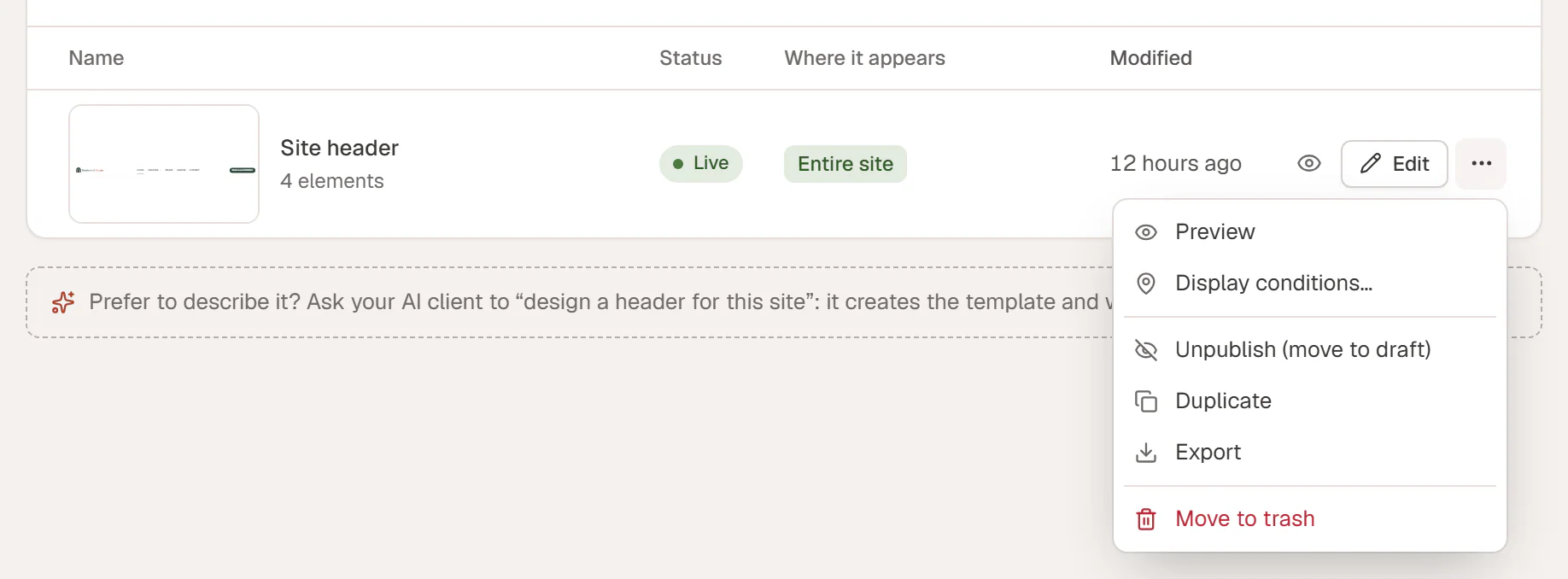
Each row has an Edit button and a ⋯ menu:
| Action | What it does |
|---|---|
| Preview | Opens the preview described above. |
| Popup settings… | Popups only: layout, triggers and targeting. See Popups. |
| Display conditions… | Where the template appears. See Template conditions. |
| Copy open link | Popups only: copies the link that opens the popup, such as #urmi-popup:open:62. |
| Copy shortcode | Saved sections only: copies the section's shortcode. |
| Publish / Unpublish (move to draft) | Makes the template live, or takes it off the site. A message with Undo appears. |
| Duplicate | Makes a draft copy you can change without touching the original. |
| Export | Downloads the template as a file you can import on another site with Import. See Import & export templates. |
| Move to trash | Removes the template after a confirmation. Undo restores it right away; later, restore it from the WordPress trash. |
On a multilingual site, the menu also offers Translate into… or Edit … version for each language. See Multilingual sites.
The Status column shows Draft, Live (published and shown by its conditions), Not shown (published without conditions) or Published (saved sections, loop items and mega menus). Use the search box above the list to find a template by name.