Keyboard shortcuts
All keyboard shortcuts in the editor, on Windows and Mac.
On this page
Most things you do often in the editor have a keyboard shortcut. The shortcuts are written for Windows. On a Mac, use ⌘ wherever you see Ctrl (Alt is ⌥).
To see the commands and their shortcuts inside the editor, press Ctrl+K and look at the command palette.
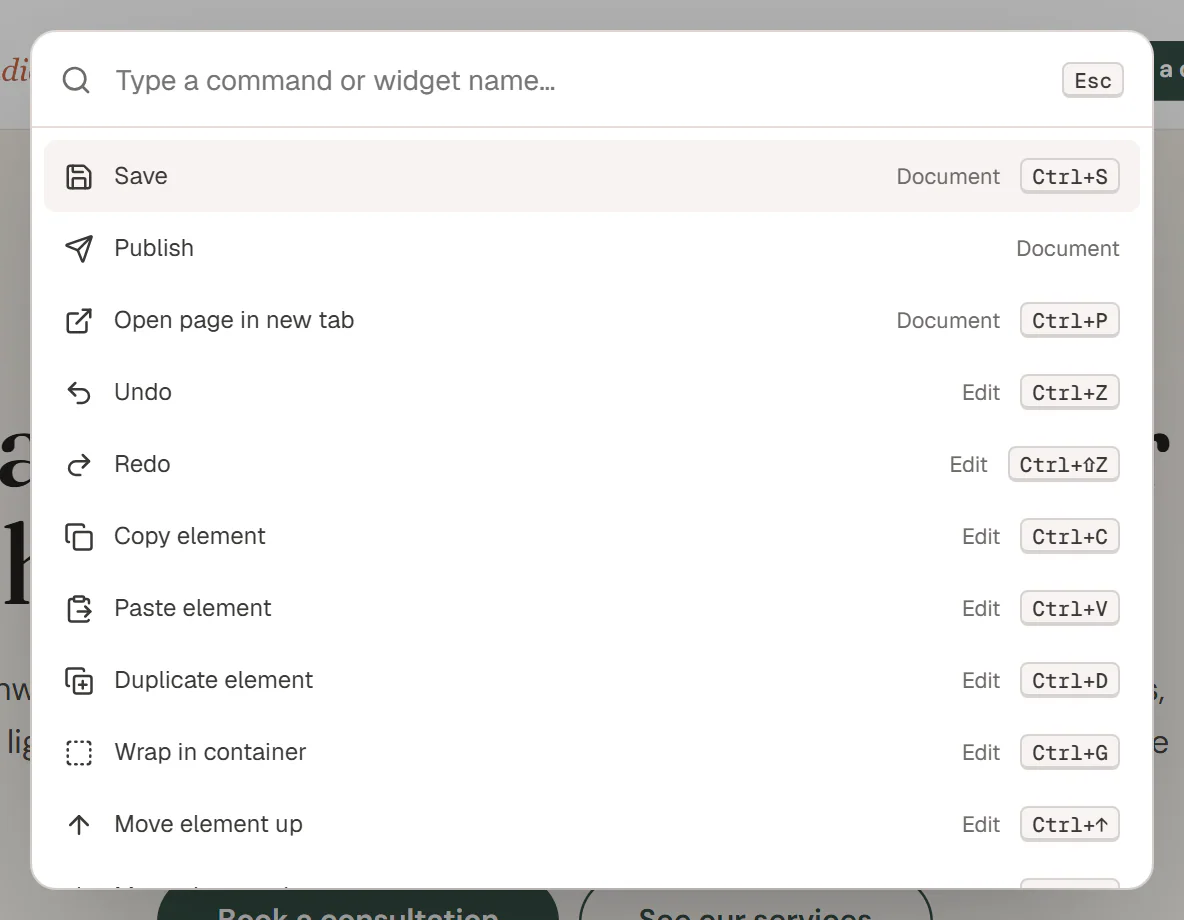
Everywhere in the editor
These work at any time, even while you are typing in a settings field.
| Shortcut | What it does |
|---|---|
| Ctrl+S | Save your changes (keeps the current status). |
| Ctrl+K | Open or close the command palette. |
Save, preview and undo
| Shortcut | What it does |
|---|---|
| Ctrl+P | Preview the page in a new tab, with your unsaved changes. |
| Ctrl+Z | Undo. |
| Ctrl+Shift+Z or Ctrl+Y | Redo. |
| Ctrl+E or ? | Open the command palette. |
Work with the selected element
Select an element first, on the canvas or in Layers. These shortcuts do not work while the cursor is in a text field.
| Shortcut | What it does |
|---|---|
| Ctrl+C | Copy the element. If you have text highlighted, the text is copied instead. |
| Ctrl+V | Paste. Also pastes images and HTML from other websites. See Copy, paste & duplicate. |
| Ctrl+Shift+V | Paste the copied element's style onto the selected element. |
| Ctrl+D | Duplicate. |
| Ctrl+G | Wrap in a new container. |
| Ctrl+↑ / Ctrl+↓ | Move the element up or down (one element at a time). |
| Delete or Backspace | Delete. There is no confirmation; press Ctrl+Z to bring it back. |
Move the selection
These work when the focus is on the canvas, not in a panel.
| Shortcut | What it does |
|---|---|
| Esc | Select the parent element. At the top level, it clears the selection. It also closes an open context menu. |
| Enter | Select the first element inside the selected one. On a heading, text or button, it starts editing the text on the canvas. |
| Tab / Shift+Tab | Select the next / previous element at the same level. With nothing selected, Tab selects the first section. |
| Ctrl+A | Clear the selection. |
| Shift + click, or Ctrl + click | Add an element to the selection, or remove it. |
Panels
| Shortcut | What it does |
|---|---|
| Shift+A | Open Insert and jump to the widget search. |
| Any letter or number | With Insert open and the focus on the canvas, starts a widget search with that letter. |
| Ctrl+I or Shift+N | Switch between Layers and Insert. |
In the Insert search, ↑ and ↓ pick a result and Enter adds it. Esc clears the search. On a focused widget in the list, press F to add it to your favourites or remove it. See Adding elements.
Edit text on the canvas
Double-click a heading, text or button (or press Enter when it is selected) to type directly on the canvas.
| Shortcut | What it does |
|---|---|
| Ctrl+B / Ctrl+I / Ctrl+U | Bold, italic, underline. |
| Enter | In a heading: new line. In a one-line field such as a button label: finish editing. In a text block: new paragraph. |
| Esc | Finish editing. Your changes are kept; press Ctrl+Z to undo them. |
Pasted text is inserted as plain text, without the formatting of the source.
Spacing handles
When spacing handles are on, you can drag padding, margin, gap and column width on the canvas. Hold a key while you drag:
| Key | What it does |
|---|---|
| Shift | Drag a padding handle to change all four sides at once. |
| Alt | Drag a padding handle to change two opposite sides (top and bottom, or left and right). |
| Alt | Drag a column width handle without snapping to ¼, ⅓, ½, ⅔ and ¾. |
In the command palette
| Shortcut | What it does |
|---|---|
| ↑ / ↓ | Move through the results. |
| Enter | Run the highlighted command. |
| Esc | Close the palette. |