Dynamic tags
Show post titles, custom fields, site details and more instead of fixed text.
On this page
A dynamic tag replaces the fixed value of a setting with live data from your site: the title of the post being shown, its featured image, the site logo, a custom field, the name of the logged-in visitor and more. You design the layout once, and the content fills in by itself on every page that uses it. Dynamic tags are what make single post templates, loop items and query loops work.
Add a dynamic tag
Select the element
Click the element on the canvas, for example a Heading, and open the Content tab of the inspector.
Open the tag list
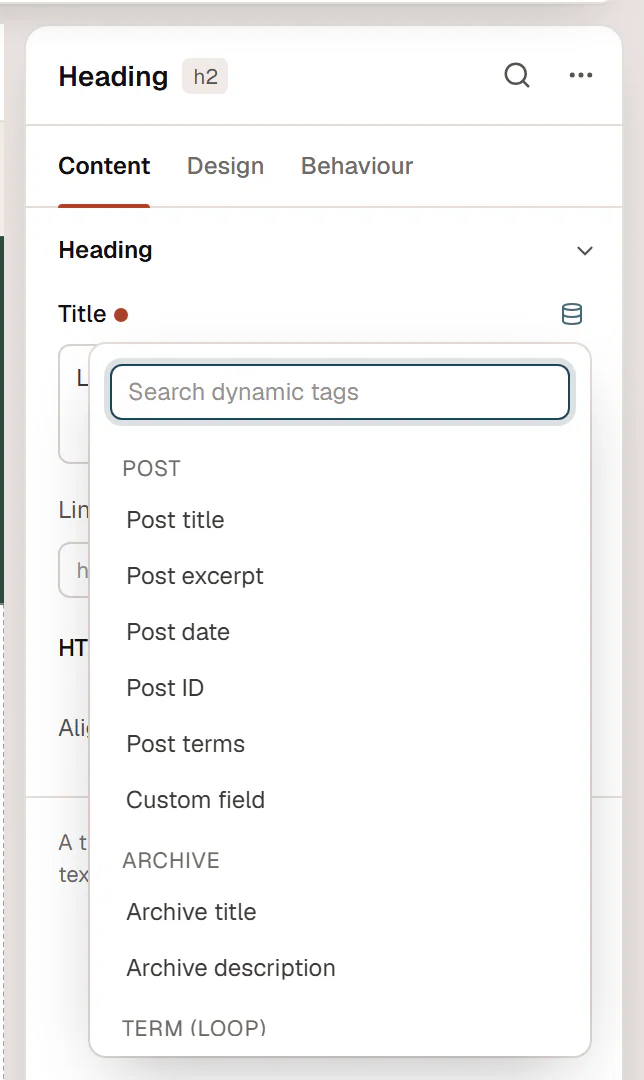
Settings that accept dynamic data show a small database icon at the right of their label. Click it to open the Dynamic data list.
Pick a tag
Scroll through the groups or type in Search dynamic tags, then click a tag. The setting now shows a blue chip with the tag's name instead of its text field, and the canvas shows the live value.
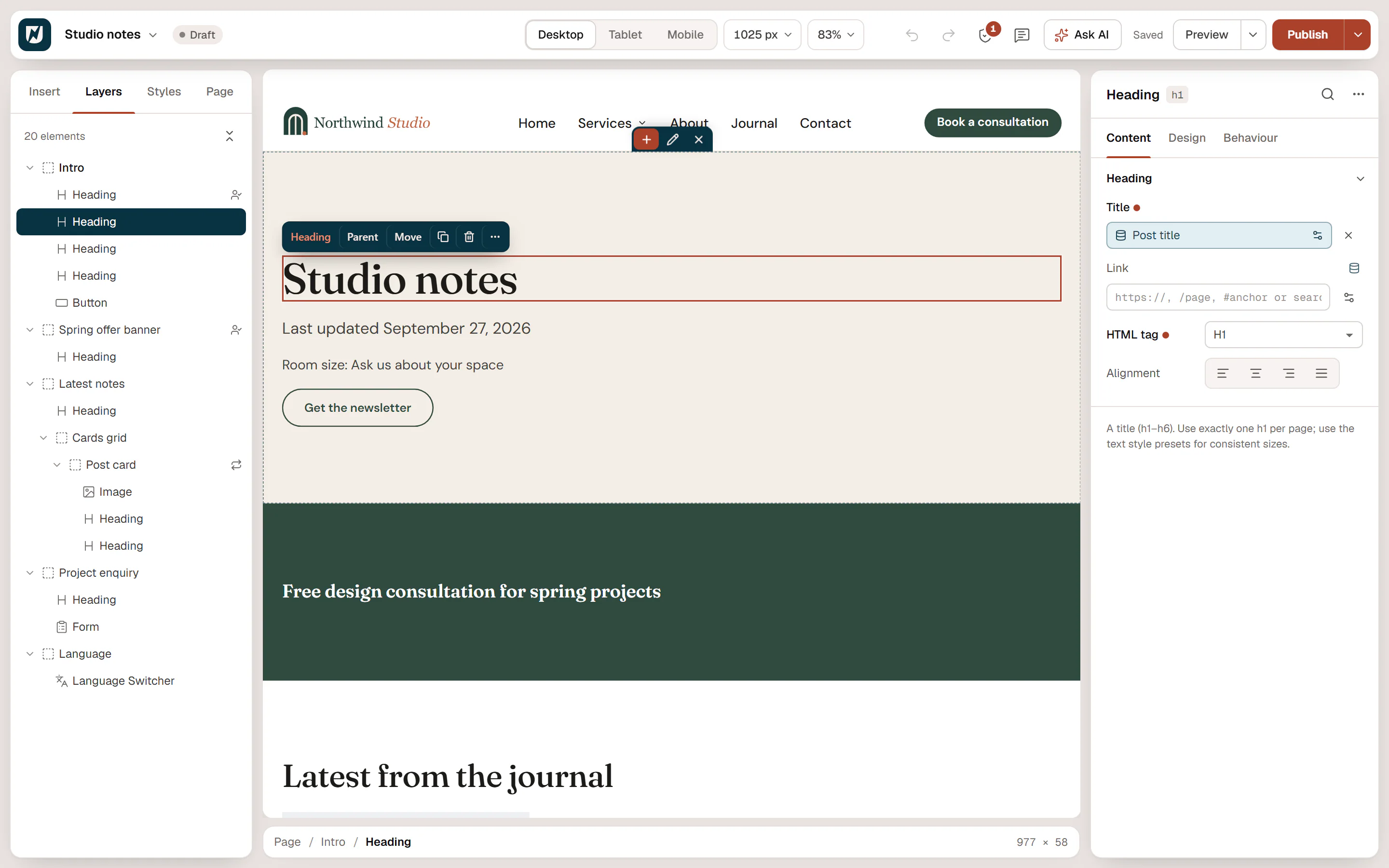
To go back to fixed text, click the × next to the chip (Remove dynamic data). The text you had typed before is still there.
Change a tag's options
Click the chip to open its settings. Some tags have options of their own, such as the date format of Post date or the taxonomy of Post terms. Every tag also has three extra fields:
| Setting | What it does |
|---|---|
| Before | Text placed in front of the value, for example Last updated . It only appears when the tag has a value. |
| After | Text placed after the value, for example min read. It only appears when the tag has a value. |
| Fallback | Shown when the tag returns nothing, for example when a post has no excerpt or a custom field is empty. |

Spaces at the start or end of Before and After are kept, so Last updated and the date do not run together.
When a tag is empty and has no fallback, the live site shows nothing for it. In the editor you keep seeing the setting's own text instead, so the element does not disappear while you design.
Which settings accept tags
Only settings with the database icon accept dynamic data, and the list only offers tags that fit the setting:
| Setting type | Tags offered |
|---|---|
| Text (titles, labels, paragraphs) | Tags that return text, such as Post title or Site tagline |
| Links | Tags that return an address, such as Post URL, Author archive URL, Open popup or Contact link |
| Images | Tags that return an image, such as Featured image, Site logo or Author avatar |
| Numbers | Number and text tags, such as Post ID or Term post count |
| Colors | Custom field (a field that stores a color) |
When no tag fits, the list says No tags for this field.
Where the data comes from
A tag reads its data from the place where the element is shown:
- On a regular page, Post tags show the page itself.
- In a single template, they show the post or page the visitor is reading.
- Inside a loop item or a query loop, they show each item of the loop in turn.
- Archive tags show the category, tag, author or date archive being viewed, the blog page or the search results.
- Term (loop) tags show the category or tag of a term query loop, or the term archive being viewed.
While you design a template, the editor fills the tags with sample content. Choose which post it uses with Preview with in the template's settings. See Single posts & pages.
Every tag
The tags are grouped in the list as shown below. ACF field and Meta Box field only appear when those plugins are active; see Custom fields.
| Tag | What it shows |
|---|---|
| Post title | The title of the post or page. |
| Post excerpt | The excerpt, or the start of the content when there is none. Words sets the length (30 by default; 0 shows the whole text). |
| Post date | The publish date, or the last modified date with Date: Modified. Format takes a date format such as F j, Y (September 18, 2026) or Y (2026), or human for a relative time such as "3 days ago". Empty uses the site's date format. |
| Post URL | The address of the post. Use it for links, for example on a card title. |
| Post ID | The post's ID number. |
| Featured image | The featured image, with its alt text. |
| Post terms | The post's categories, tags or other terms. Choose the Taxonomy and the Separator (a comma by default). |
| Custom field | The value of a custom field. Type its Meta key. See Custom fields. |
| ACF field / Meta Box field | A field made with Advanced Custom Fields or Meta Box. |
| Tag | What it shows |
|---|---|
| Archive title | The name of the category, tag, author or date being viewed. On the search results page it reads "Search results for “…”"; on the blog page it is the title of your posts page. |
| Archive description | The description of the category, tag or author. |
| Tag | What it shows |
|---|---|
| Term name | The name of the category or tag. |
| Term link | The address of the term's archive. |
| Term description | The term's description. |
| Term post count | How many posts have this term. |
| Tag | What it shows |
|---|---|
| Site title / Site tagline | The name and tagline from Settings → General in WordPress. |
| Site URL | The address of your home page. |
| Site logo | The logo set for your site (Appearance → Customize → Site Identity, or the Site Logo block). |
| Author name / Author bio | The display name and biographical info of the post's author. |
| Author archive URL | The address of the author's archive page. |
| Author avatar | The author's profile picture. |
| Current user name | The display name of the logged-in visitor. Empty for visitors who are not logged in, so add a Fallback such as "friend". |
| Tag | What it shows |
|---|---|
| Open popup | A link that opens, closes or toggles a popup. Choose the Popup and the Action. See Open from a link. |
| Contact link | A link that starts an email, a phone call, an SMS or a WhatsApp chat. Choose the Type and type the Email / number. |
| Current date | Today's date. Format takes a date format such as Y for a copyright year; empty uses the site's date format. |
| Request parameter | The value of a parameter in the page address, for example utm_source in ?utm_source=newsletter. Type the Query parameter name. |
| Shortcode | The output of a WordPress shortcode. Only users who may post unfiltered HTML (usually administrators) can add it. |
Good to know
- Custom field never shows protected fields (keys that start with an underscore). Post excerpt and the custom field tags show nothing for a password-protected post.
- Post terms only lists public taxonomies, never menus or other internal lists.
- Dynamic tags also work in display conditions: the Dynamic value rule shows or hides an element depending on a tag's value.
- An AI assistant connected over MCP can add dynamic tags too, for example "use the post title in this heading".