Accessibility checks
Find and fix accessibility issues such as missing alt text, low contrast and heading order.
Checks looks at the page you are editing for common accessibility problems: images without alt text, links without text, skipped heading levels, low contrast and more. Fixing them makes your site easier to use for everyone, including people who use a screen reader or the keyboard.
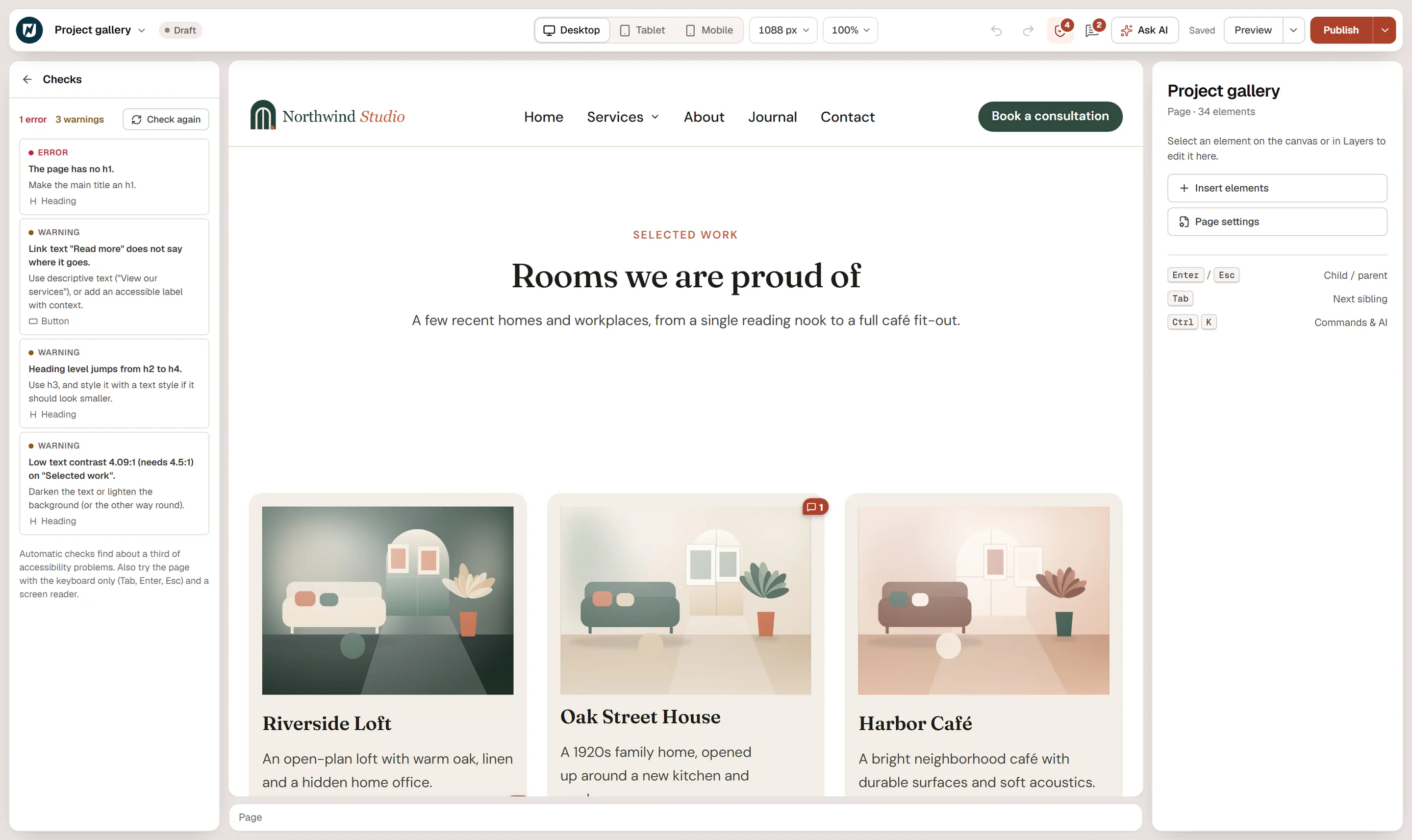
Run the checks
Click Checks (the shield icon) in the top bar, or press Ctrl+K and choose Accessibility checks.
The checks run as soon as the panel opens and again shortly after each change. The top bar badge always shows how many errors and warnings there are, even when the panel is closed, so you notice new issues while you work. Click Check again to run them by hand.
Read and fix an issue
Each issue shows:
- its level: Error (a real barrier, fix it) or Warning (probably a problem, check it);
- what is wrong, for example Image without an alt attribute.;
- how to fix it, for example Describe the image in its alt text, or mark it decorative (empty alt).;
- the element it is about.
Click an issue to select the element on the canvas, fix it in the inspector, and the issue disappears from the list. When everything is fine, the panel says No problems found on this page.
What is checked
| Issue | Level | How to fix it |
|---|---|---|
| Image without an alt attribute. | Error | Write alt text in the image settings, or turn on Decorative for purely ornamental images. |
| Alt text looks like a file name | Warning | Replace names like IMG_2041.jpg with a short description of the picture. |
| Link without text (only an icon or image). | Error | Add an accessible label, or alt text to the image inside the link. |
| Link text … does not say where it goes. | Warning | Replace texts like "Read more", "Click here" or "Learn more" with what the link opens, such as "View our services". |
| Button without a label. | Error | Give the button text or an accessible label. |
| Form field without a label. | Error | Show the field label (or keep it for screen readers only) instead of relying on the placeholder. |
| Empty heading. | Error | Write the heading or delete it. |
| More than one h1 on the page. | Error | Keep one h1 for the main title, use h2 for sections. |
| The page has no h1. | Error | Make the main title an h1. Checked on pages and on single page, 404 and search results templates. |
| Heading level jumps (for example from h2 to h4) | Warning | Use the next level (h3) and give it a smaller text style if it should look smaller. |
| Low text contrast | Error or warning | Darken the text or lighten the background. Normal text needs a ratio of 4.5:1, large text 3:1. Text on images, gradients and videos is not checked. |
| Embedded frame without a title. | Warning | Give the map, video or embed a title that says what it is. |
| The id … is used more than once. | Warning | Give each element a unique Anchor ID. |
| Positive tabindex changes the keyboard order. | Warning | Remove the tabindex attribute or set it to 0. |
| Video plays automatically with sound. | Warning | Mute autoplaying videos or let visitors start them. |
Heading levels describe the structure of the page, not the size of the text. Pick the level that fits the outline (h1 for the page title, h2 for sections, h3 inside them) and set the look with a text style.
What the checks cannot do
The panel reminds you: Automatic checks find about a third of accessibility problems. Also try the page with the keyboard only (Tab, Enter, Esc) and a screen reader.
- Only the content you build in the editor is checked. A title printed by your theme, for example, is not seen.
- The checks cannot judge whether alt text is accurate or whether a page is easy to understand.
- Nothing is fixed automatically; you decide how to fix each issue.
An AI assistant connected over MCP can run a similar audit and fix issues for you. See What AI can do.