Video
A YouTube, Vimeo or self-hosted video that loads only when played.
On this page
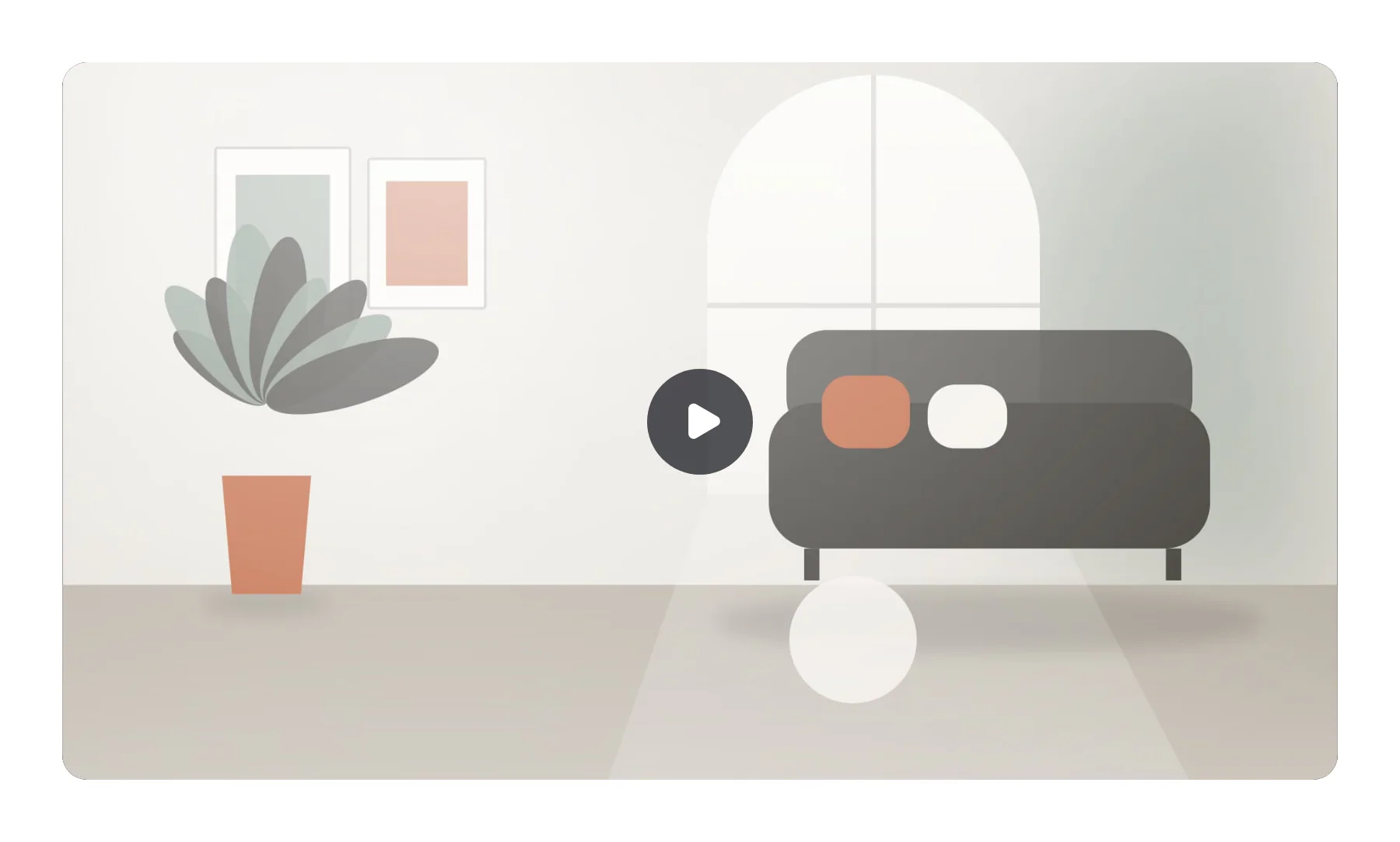
The Video widget plays a video from YouTube, Vimeo, your media library or a file on another site. YouTube and Vimeo videos use a click-to-load preview: visitors see a poster image and a play button, and the video player (with its cookies) loads only when they press play. Privacy mode uses youtube-nocookie.com and Vimeo's “do not track” option.
Add a video
Insert it
Open Insert in the left panel, find Video under Media (or type
videoin Search widgets) and click it or drag it onto the canvas.Choose the source
Pick a Source and paste the YouTube URL or Vimeo URL, choose a Video file from the media library, or enter a File URL.
Name it
Type an Accessible title, such as “A walk through the Cedar House project”. It names the play button and the player for screen readers.
Set a poster
In Content → Playback, choose a Poster image. YouTube videos use their own thumbnail when you leave it empty.
Load the player on click (privacy)
With Load player on click on (the default for YouTube and Vimeo), the page shows your poster and play button, drawn by your site. The YouTube or Vimeo player, and its cookies, load only when the visitor presses play. This keeps the page fast and helps with privacy laws such as the GDPR. Privacy mode additionally uses youtube-nocookie.com for YouTube and the “do not track” option for Vimeo.
Without a poster, a YouTube preview uses the video's thumbnail from YouTube's image server. Choose your own Poster image if no request should go to YouTube before the click.
Settings
Settings marked Per device can differ on desktop, tablet and mobile (see Responsive editing). Video addresses, the title and the poster support dynamic tags (see Dynamic tags).
Content tab
| Setting | What it does |
|---|---|
| Source | Where the video comes from: YouTube, Vimeo, your media library or a video file on another site. Options: YouTube, Vimeo, Media library, External file URL. Default: YouTube. |
| YouTube URL | The address of the YouTube video. Shown when Source is YouTube. Supports dynamic tags. |
| Vimeo URL | The address of the Vimeo video. Shown when Source is Vimeo. Supports dynamic tags. |
| Video file | A video file from your media library. Shown when Source is Media library. Supports dynamic tags. |
| File URL | The address of an MP4 or WebM file. Shown when Source is External file URL. Supports dynamic tags. |
| Accessible title | Names the play button and the player for screen readers, for example “Product tour”. Supports dynamic tags. |
| Aspect ratio | Shape of the video frame. Default: 16:9. Per device. |
| Setting | What it does |
|---|---|
| Start at (seconds) | Starts the video at this second. |
| End at (seconds) | Stops the video at this second. Shown when Source is not Vimeo. |
| Autoplay | Starts the video, muted, when it scrolls into view. Visitors who prefer reduced motion do not get autoplay. |
| Mute | Starts the video without sound. |
| Loop | Plays the video again when it ends. |
| Player controls | Shows the player’s play, volume and fullscreen controls. On by default. |
| Privacy mode | Uses youtube-nocookie.com for YouTube and “do not track” for Vimeo. On by default. Shown when Source is YouTube or Vimeo. |
| Load player on click | Shows a poster and a play button; the YouTube or Vimeo player (and its cookies) load only when the visitor clicks play. On by default. Shown when Source is YouTube or Vimeo. |
| Poster image | The image shown before the video plays. YouTube videos use their own thumbnail when it is empty. Supports dynamic tags. |
| Play icon | Icon of the play button. |
Design tab
| Setting | What it does |
|---|---|
| Border radius | Rounds the corners of the video. Per device. |
| Border | Border of the video. |
| Shadow | Shadow of the video. |
| Poster overlay | A color over the poster image. |
| Poster filters | Blur, brightness, contrast, saturation and hue of the poster. |
| Setting | What it does |
|---|---|
| Size | Size of the play button. Per device. |
| Border radius | Rounds the play button; 50% makes it a circle. Per device. |
| Normal › Icon color | Color of the play icon. |
| Normal › Background | Background color of the play button. |
| Hover › Icon color | Color of the play icon on hover. |
| Hover › Background | Background color of the play button on hover. |
| Shadow | Shadow of the play button. |
Every element also has these sections at the end of the Design tab.
| Section | What it does |
|---|---|
| Spacing & position | Margin, padding, width, alignment in its container, order, position (relative, absolute, fixed), offsets, z-index and global classes. See Spacing, size & position. |
| Background & border | Background, border, border radius, box shadow, overflow and opacity of the whole element. See Colors & backgrounds and Borders & shadows. |
| Mask | Crops the element to a shape (circle, arch, blob, star…) or your own SVG or PNG. See Shape dividers & masks. |
Behaviour tab
The Behaviour tab is the same for every element.
| Section | What it does |
|---|---|
| Anchor & classes | An Anchor ID for #links and your own CSS classes. |
| Animations | Entrance, scroll, hover and loop animations from presets or your own timeline. See Motion & effects. |
| Motion & effects | A simple entrance animation, transforms (also on hover), CSS and backdrop filters, and sticky positioning. |
| Scroll & mouse effects | Movement, rotation, scale, fade and blur while the page scrolls, and pointer effects (follow the pointer, 3D tilt). |
| Visibility | Hide the element on desktop, tablet or mobile, or in dark or light mode. See Visibility. |
| Conditions | Show the element only when rules match, such as logged-in visitors, a date range or a URL parameter. See Display conditions. |
| Interactions | Show, hide or change other elements when this one is clicked, hovered or scrolled into view. See Interactions. |
| Attributes | Custom HTML attributes for this element. See Anchor, classes & attributes. |
Tips
- Autoplay starts muted. Autoplay starts the video without sound when it scrolls into view, and never for visitors who prefer reduced motion.
- Short clips. For a short background loop, use a self-hosted MP4 with Autoplay, Mute and Loop on and Player controls off, or a container video background.
- Captions. Add captions to your video on YouTube or Vimeo; visitors can turn them on in the embedded player.
- Aspect ratio. Set Aspect ratio to 9:16 for vertical videos such as reels and shorts.