Key concepts
Containers, widgets, the Design System, templates and conditions explained in plain words.
On this page
Urmi uses a handful of ideas again and again. Once you know them, every screen makes sense. This page explains each one in a few sentences and links to the details.
Pages, posts and templates
- Pages and posts are your normal WordPress content. You open them in the Urmi editor with Edit with Urmi and design their content.
- Templates are designs that WordPress shows automatically in many places: the header and footer of every page, the layout of every blog post, archive pages, the 404 page, popups, mega menus, and reusable sections. You build them in the Theme Builder, in the same editor. See Theme Builder.
Elements: containers and widgets
Everything on a page is an element. There are two kinds:
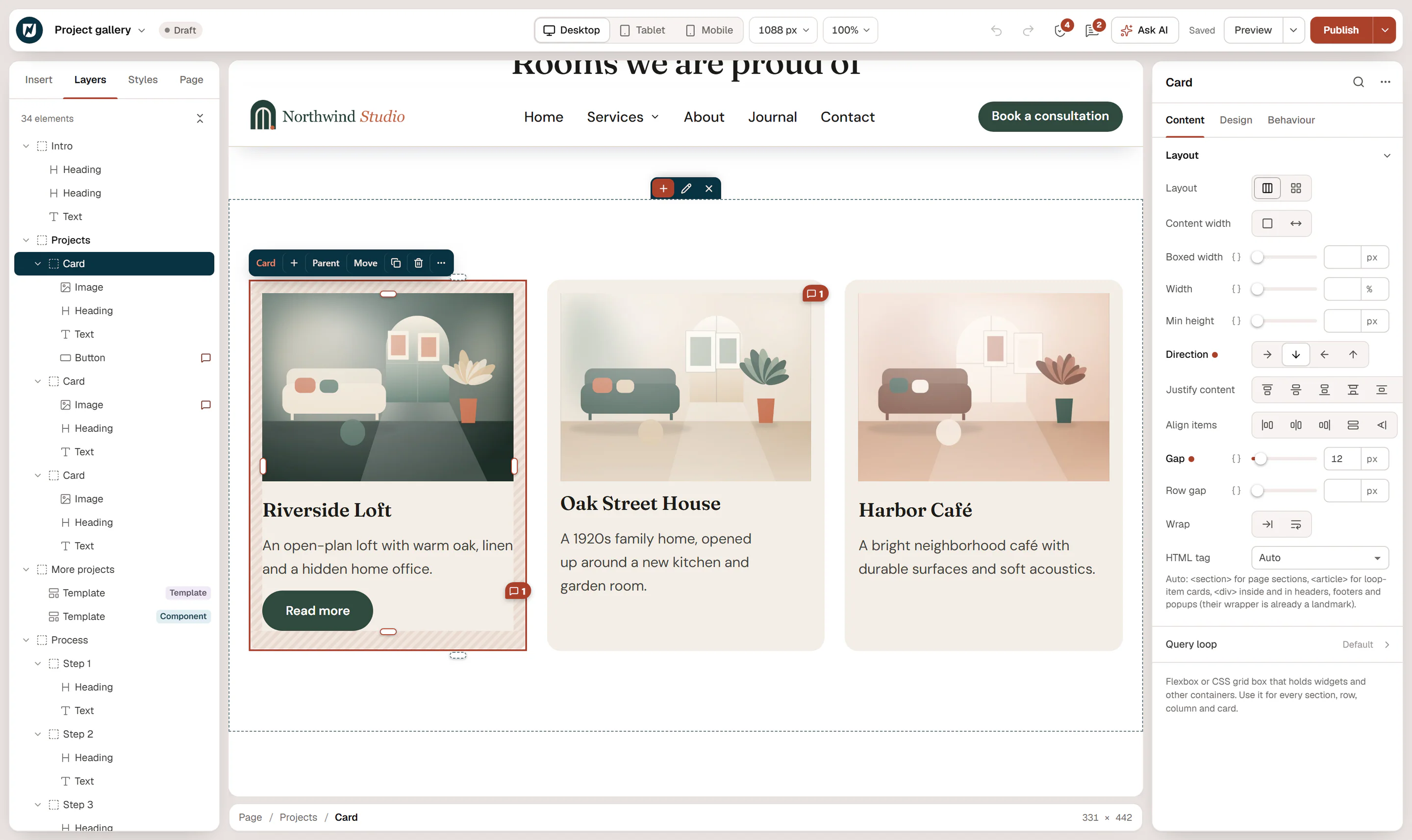
- Containers are boxes that hold other elements and arrange them, in a row, a column or a grid. Each section of a page is a container, and so is each row, column and card inside it. See Containers & flexbox.
- Widgets are the content: a heading, a text, an image, a button, a form, a map. There are 80 of them. See Widgets.
You add elements from the Insert panel, see their structure in Layers, and change the selected element in the inspector on the right. See Interface tour.
Content, Design and Behaviour
The inspector has three tabs for every element:
- Content: what it shows (texts, images, links, items).
- Design: how it looks (typography, colors, spacing, borders).
- Behaviour: how it acts (animations, sticky, visibility, conditions, interactions, anchors and attributes).
See Editing elements & the inspector.
Devices
You design for three devices: Desktop, Tablet and Mobile. Values you set on desktop apply everywhere; on a smaller device you change only what should be different there, such as a smaller heading or stacked columns. See Responsive editing.
The Design System
The Design System holds the styles your whole site shares: brand colors, fonts, text styles such as H1 or Body, the default button, spacing sizes and the layout width. Elements use these styles by reference, so changing a color in the Design System changes it everywhere at once. See Design System.
Classes and components
Two ways to reuse your work:
- A class is a named style you put on many elements of the same type, such as all cards. Change the class, and all of them change. See Classes.
- A saved section is a section you reuse on many pages. Placed with the Template widget, it stays linked to the original: edit it once, every page updates. With component properties, each copy can have its own text and images. See Components.
Display conditions
Conditions decide where and to whom something is shown:
- For templates: on which pages a header, footer, layout or popup appears, for example "the entire site" or "all blog posts, except the Journal category". See Display conditions.
- For single elements: whether an element is on the page at all, for example only for logged-in visitors or only during a campaign. See Display conditions for elements.
Dynamic content
Widgets can show live data instead of fixed text: the post title, the featured image, a custom field, the site name. A query loop container repeats its content for each post, which is how blog lists and post grids are built. See Dynamic tags and Query loop containers.
Draft, publish and update
Work in the editor is private until you save it:
- A new page is a draft. Click Publish to put it online.
- On a published page, click Update to make your changes live.
- Every save keeps a version you can go back to. See History, revisions & autosave.
AI assistants
Urmi has a built-in connection (an MCP server) for AI assistants such as Claude or ChatGPT. It is off until an administrator turns it on. Once connected, you can ask the assistant to build or change pages, and it works with the same elements you edit by hand. AI works on content and design only: it can never manage plugins, themes, users or site settings. See AI & MCP.