AI & MCP overview
How AI assistants build and edit your site through the built-in MCP server.
On this page
Urmi has a built-in MCP server. It lets an AI assistant such as Claude, ChatGPT or Cursor work on your site: build pages, change your Design System, create a header, fix accessibility problems. The AI uses the same widgets and settings you use in the editor, so everything it makes stays editable by hand.
What MCP is
MCP stands for Model Context Protocol (opens in a new tab). It is an open standard that AI apps use to connect to other software. In plain words: when you connect your site, the AI app gets a set of tools for your site ("list the pages", "create a page", "update the Design System") and can use them while it talks to you.
You do not need an AI API key in WordPress for this. The AI app does the thinking with your own Claude, ChatGPT or Cursor account, and your site does the work.
What an AI assistant can do with Urmi
Once connected, you can ask for things like:
- "Design a home page for a family-run bakery in Leeds, with a hero, three product highlights, opening hours and a contact form."
- "Change the brand colors to deep green and terracotta, and use Fraunces for headings."
- "Build a sticky header with the logo, the main menu and a Book now button, and show it on the whole site."
- "Check the About page for accessibility and SEO problems and fix them."
The AI can read your site and change pages, posts, templates, popups, menus, media and the Design System, within the permissions you give it. It can read site settings, but never change them. See What AI can do for the full picture and more example prompts.
Turn on the MCP server
The MCP server is off until an administrator turns it on, so no AI app can connect to your site before you decide it may.
Open AI & MCP
Go to Urmi → AI & MCP. The status panel says MCP server is turned off.
Turn it on
Click Turn on in the status panel, or the Server disabled switch at the top of the screen.
Read and confirm
The Let AI apps edit this site? window explains what you allow. Click Turn on.
The window sums up the rules that apply to every AI app:
- Apps you connect can create and edit your pages, posts, templates, menus, media and Design System, with the permissions of the person who connects them.
- They can never manage plugins, themes, users or site settings, or add code.
- Apps connect straight to your site. There is no Urmi service in between.
- Every change is logged and can be undone, and you can disconnect an app or turn the server off at any time.
Connect an AI app
With the server on, go to Urmi → AI & MCP. The Connect a client tab has copy-ready instructions for each app, filled in with your site's address.
There are two ways an app can connect:
| Method | Used by | What you need |
|---|---|---|
| Sign in with OAuth | The Claude app (connector), ChatGPT | Your site must be public and use HTTPS. You log in to your site once and approve the app. |
| API key | Claude Code, Claude Desktop, Cursor, VS Code, Windsurf, scripts | An API key created in AI & MCP → API keys. Works for local sites too, as long as the app runs on the same computer. |
Read the status panel
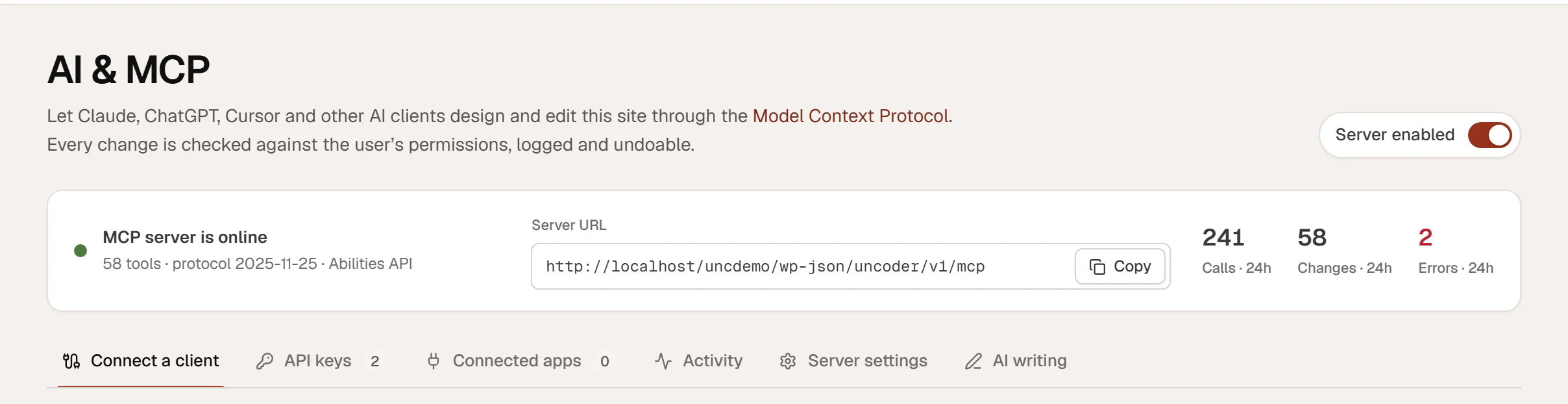
The top of the AI & MCP screen shows whether the server is running:
- Server enabled (Server disabled while it is off) turns the whole MCP server on or off. When you turn it off, every AI client is disconnected until you turn it back on. API keys and connected apps are kept.
- MCP server is online confirms the server answers, with the number of tools it offers. While the server is off, the panel says MCP server is turned off and has a Turn on button.
- Server URL is the address you give to AI apps. Click Copy to copy it. It looks like
https://example.com/wp-json/urmi/v1/mcp. - Calls · 24h, Changes · 24h and Errors · 24h count what AI clients did in the last 24 hours.
How your site stays safe
- The AI acts as you. Every request runs as the WordPress user who connected the app, and it can only do what that user may do.
- Content and design only. While an AI tool runs, the user loses every administrative right, whatever their role. An AI can never manage plugins, themes, users or site settings, or add code, and everything it writes is filtered like content from a user who may not post unfiltered HTML.
- You choose the permissions. A connection gets only the permissions you allow: read, content, design and site. See API keys & scopes.
- Every change is logged. The Activity tab lists each call with the app, the tool and the result.
- Changes can be undone. Before an AI changes a page, a template, a popup or the Design System, Urmi saves the previous state. You can undo the change from the activity log, or from the editor if the page is open.
- Nothing is deleted. Urmi's AI tools cannot delete pages, posts, templates or media files.
- Straight to your site. AI apps connect directly to your site, not through an Urmi service.
Read Security & privacy for the details.
If you have a page open in the editor while an AI changes it, the editor loads the new version and shows Updated by with the app's name and an Undo button. If you have unsaved changes, it asks before loading the AI's version.
AI writing in the editor is separate
Urmi also has AI buttons inside the editor: rewrite a text, translate it, write alt text or generate an image. Those use the AI provider set up in WordPress under Settings → Connectors (WordPress 7.0 or newer) and are turned on in the AI writing tab. See AI writing and AI images.