Copy, paste & duplicate
Copy elements between pages, paste styles, duplicate, wrap and move elements quickly.
On this page
Copying and duplicating save you from building the same thing twice. You can copy elements within a page, to another page, to another site that runs Urmi, and you can even paste HTML from other websites.
Shortcuts are shown for Windows. On a Mac, use ⌘ instead of Ctrl.
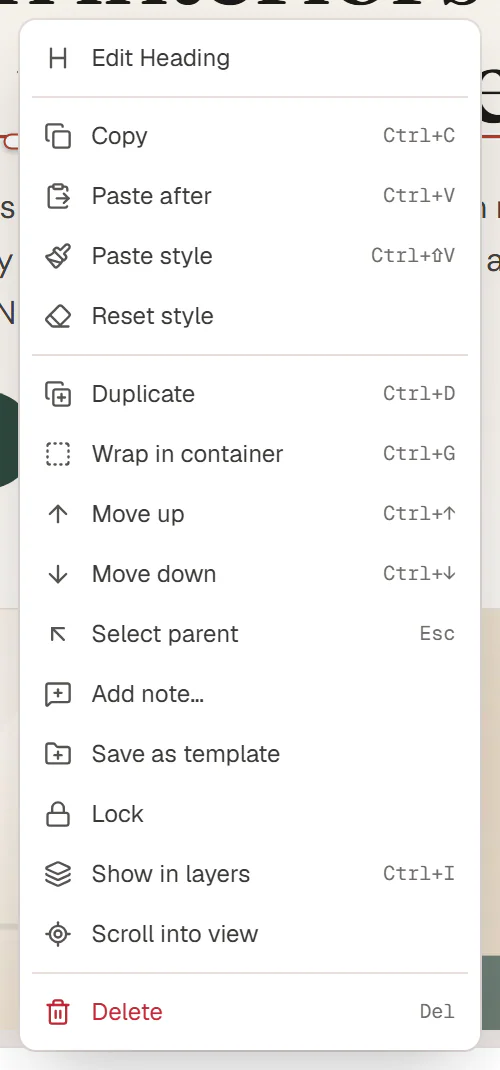
The element menu
Right-click an element on the canvas or in Layers, or click … on its toolbar. The menu holds every action on this page:
| Action | Shortcut | What it does |
|---|---|---|
| Edit | Selects the element and opens its Content tab. | |
| Copy | Ctrl+C | Copies the element and everything inside it. |
| Paste after | Ctrl+V | Pastes the copied element after this one (or inside it, if it is a container). |
| Paste style | Ctrl+Shift+V | Gives this element the style of the copied one. |
| Reset style | Removes the element's own style settings. | |
| Duplicate | Ctrl+D | Places a copy right after the element. |
| Wrap in container | Ctrl+G | Puts the element in a new container. |
| Move up / Move down | Ctrl+↑ / Ctrl+↓ | Moves the element one place. |
| Select parent | Esc | Selects the container around it. |
| Add note… | Leaves a note on the element. | |
| Save as template | Saves the element as a reusable section. See Sections & patterns. | |
| Lock / Unlock | Protects the element from changes. See Layers. | |
| Show in layers | Ctrl+I | Opens Layers. |
| Scroll into view | Scrolls the canvas to the element. | |
| Delete | Delete | Deletes the element. |
Right-click an empty part of the page to see only Paste.
Copy and paste elements
Copy
Select one or more elements and press Ctrl+C, or right-click and choose Copy. The editor confirms with Copied.
Choose where to paste
Select a container to paste inside it, or an element to paste after it. With nothing selected, the elements go to the end of the page.
Paste
Press Ctrl+V. The pasted elements are selected, so you can move or edit them straight away.
The copy stays available on every page of the site in the same browser, so you can copy a section on one page and paste it on another. It also goes to your computer's clipboard: press Ctrl+V in the Urmi editor of another site to paste it there.
Widgets pasted between sections get a new section around them.
Copying elements to another site copies their design and text. Images keep pointing to the site you copied from, so upload them to the new site and swap them afterwards.
Paste style
To make one element look like another of the same type, for example two buttons:
- Copy the element whose style you like (Ctrl+C).
- Select the other element (or several).
- Press Ctrl+Shift+V or right-click and choose Paste style.
Paste style copies the Design and Behaviour settings: typography, colors, spacing, background, border, animations, visibility and so on, including hover and other states. It does not copy the content (texts, images, links) or the anchor ID. It only works between elements of the same widget type.
Reset style does the opposite: it removes the widget's own style settings and state styles so it falls back to your Design System and any classes. Spacing, background, border and mask are kept.
Duplicate, wrap and move
- Duplicate (Ctrl+D) copies each selected element right after itself. The copies are selected.
- Wrap in container (Ctrl+G) puts the selected elements in a new container, for example to give a group of widgets a shared background.
- Move up and Move down (Ctrl+↑ / Ctrl+↓) move one element at a time. At the start or end of a container, the element steps out of it.
- To move an element anywhere, drag it by Move on its toolbar, or drag its row in Layers.
Delete
Press Delete or Backspace, click the trash icon on the toolbar, or choose Delete in the menu. There is no confirmation: press Ctrl+Z to undo. Locked elements cannot be deleted until you unlock them.
Paste from other websites
You can paste content from a web page, an email or an AI chat, and the editor turns it into real elements:
- Copy the content in the other app or website.
- In the editor, select where it should go and press Ctrl+V.
The editor converts what it recognizes:
| You paste | You get |
|---|---|
| Headings (h1–h6) | Heading widgets with the same level |
| Paragraphs, lists, tables, quotes | Text or Blockquote widgets |
| Images | Image widgets (the image stays on the original website) |
| Links and buttons | Buttons |
| YouTube and Vimeo embeds | Video widgets |
| Boxes with layout (div, section, header…) | Containers, keeping flex or grid layout, gaps, padding and background color |
| Anything else | HTML widgets, filtered like the content of a post (see HTML) |
Scripts and <style> blocks are left out: the look comes from element settings, so restyle the new elements in the Design tab. The editor shows how many elements it created, with an Undo button, and says when the pasted content had CSS that was left out. Pasted images stay on the website you copied them from; upload them to your Media Library and replace them before you publish.
Paste images
Paste an image from your clipboard, for example a screenshot, with Ctrl+V. It is uploaded to the Media Library and added as an Image widget. You can also drag image files from your computer onto the canvas.