AI images
Generate images in the editor with the AI provider set up in WordPress.
AI images adds a Generate with AI button to image fields in the editor. You describe a picture, choose its shape, and the image is created and saved to your media library, ready to use.
AI images uses the AI Client built into WordPress 7.0 and newer, with the AI provider you set up in WordPress under Settings → Connectors. Urmi has no key fields and stores no AI keys. You pay the provider directly for what you use.
Set it up
You need WordPress 7.0 or newer.
Set up a provider in WordPress
Go to Settings → Connectors. Set up a provider that can create images, for example Google or OpenAI, and add its API key there.
Open the AI writing tab
Go to Urmi → AI & MCP → AI writing. In the AI provider card, Creating images shows Ready.
Turn on image generation
In the AI images card, turn on Generate images in the editor.
Save
Click Save changes in the bar at the bottom of the screen.
If Creating images shows No provider set up, the provider in Settings → Connectors cannot create images. Set up one that can, or click Open Settings → Connectors to check it.
Generate an image in the editor
Select an element with an image
For example an Image widget. In its image field, click the Generate with AI button (the magic wand).
Describe the picture
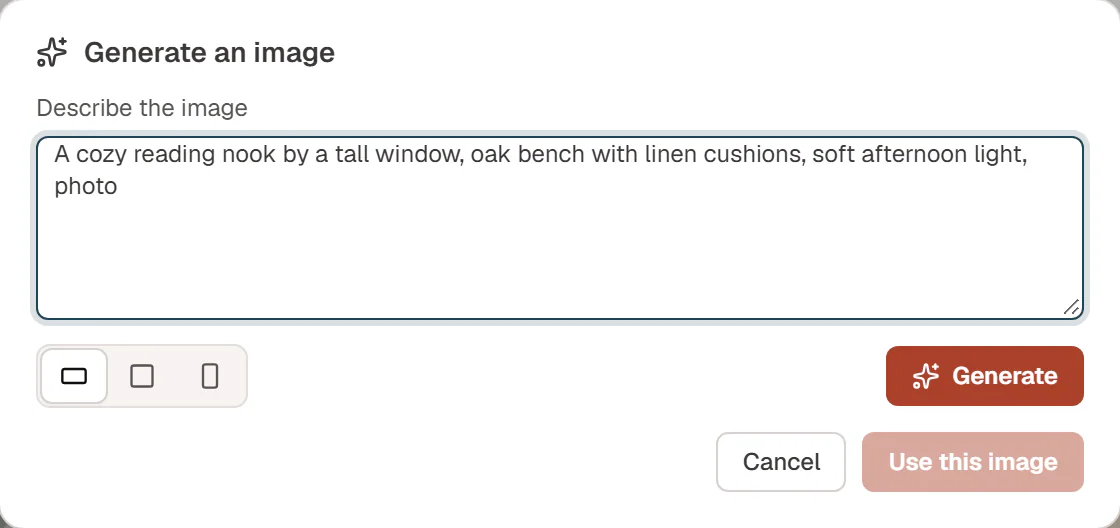
In Describe the image, write what you want to see, the style and the light. For example: "A cozy reading nook by a tall window, oak bench with linen cushions, soft afternoon light, photo".
Choose a shape
Pick Landscape, Square or Portrait.
Generate
Click Generate. Creating an image can take up to a minute. The result appears in the dialog with the note Saved to the media library.
Use it
Click Use this image to put it into the field. Not right yet? Change the description and click Generate again.
Every generated image is saved in your media library, also the ones you did not use. Its description becomes the image's title and alt text. Review the alt text afterwards: a short, plain description is usually better for visitors who use screen readers.
If no provider can create images yet, or the site runs a WordPress version before 7.0, the dialog shows a short note that explains why instead. Administrators also get a link to Settings → Connectors.
Sizes
The provider chooses the size in pixels. The shape you pick is passed on when the provider supports it; otherwise the provider's default shape is used.
Who can use it
Users who can edit with Urmi and upload files see the Generate with AI button once Generate images in the editor is on, unless their role has No access in Roles & access.
Limits and privacy
- What is sent: only the description you type, when you click Generate.
- Where it goes: from your server to the provider set up in WordPress under Settings → Connectors. That provider's terms apply.
- Rate: each user can generate 20 images in 10 minutes.
- Check the result: generated images can contain mistakes, such as odd hands or garbled text. Look at each image before you publish it.
If generating fails, the dialog shows the reason. "The AI provider refused the request" usually means the key in Settings → Connectors is wrong or was revoked.