Spacer
Blank vertical space between elements.
The Spacer adds empty vertical space between two elements. It is useful for a one-off gap, for example extra room above a closing call to action. For regular spacing, the container's Gap and padding are better: they keep spacing even and adapt per device without extra elements.
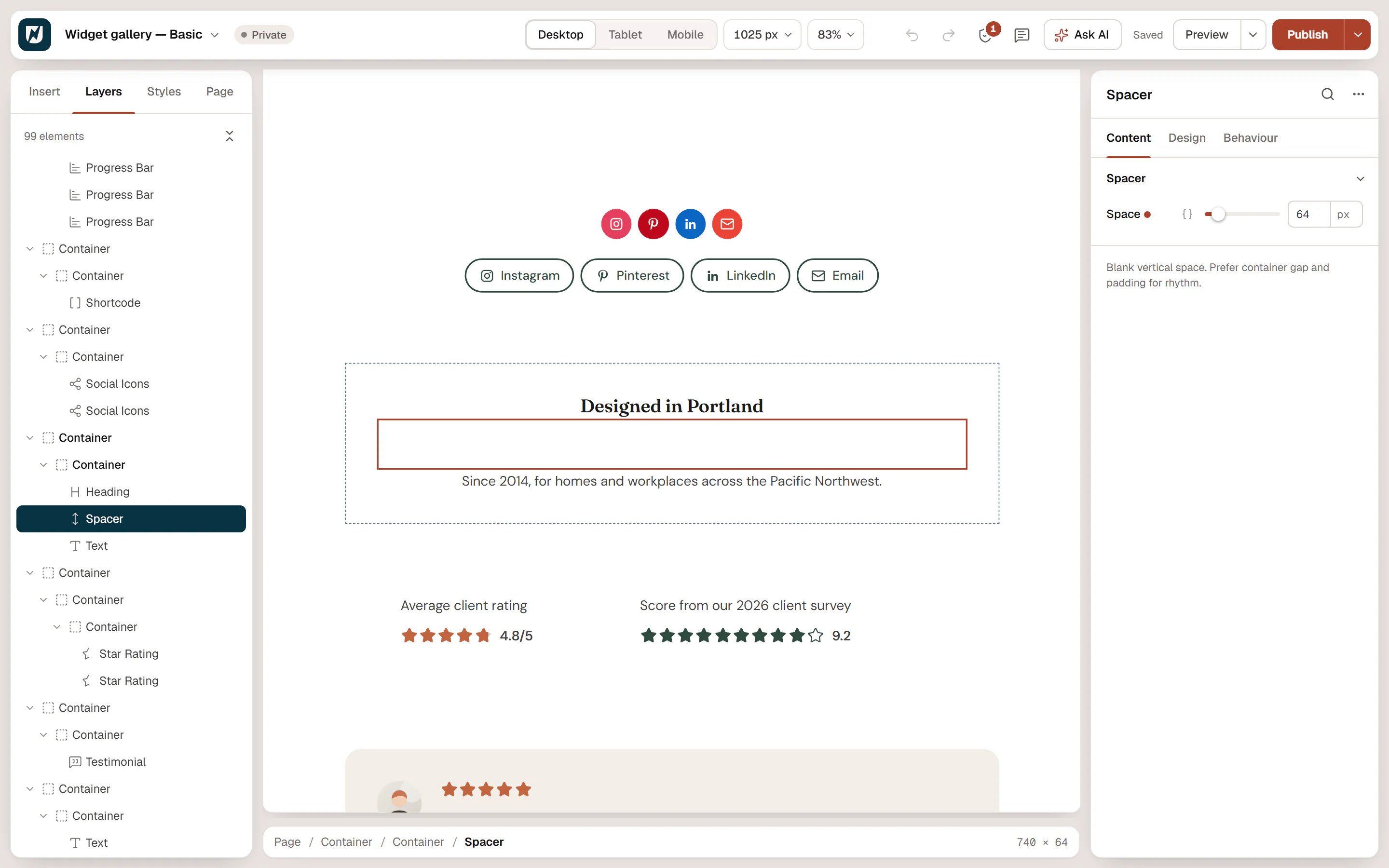
Add a spacer
Insert it
Open Insert in the left panel, find Spacer under Basic (or type
spacerin Search widgets) and drop it between two elements.Set the height
Drag Space or type a value. Switch to Tablet or Mobile in the top bar to use a smaller space on small screens.
Settings
Content tab
Spacer
| Setting | What it does |
|---|---|
| Space | Height of the empty space. Default: 48px. Per device. |
Design tab
Shared Design sections
Every element also has these sections at the end of the Design tab.
| Section | What it does |
|---|---|
| Spacing & position | Margin, padding, width, alignment in its container, order, position (relative, absolute, fixed), offsets, z-index and global classes. See Spacing, size & position. |
| Background & border | Background, border, border radius, box shadow, overflow and opacity of the whole element. See Colors & backgrounds and Borders & shadows. |
| Mask | Crops the element to a shape (circle, arch, blob, star…) or your own SVG or PNG. See Shape dividers & masks. |
Behaviour tab
Behaviour sections
The Behaviour tab is the same for every element.
| Section | What it does |
|---|---|
| Anchor & classes | An Anchor ID for #links and your own CSS classes. |
| Animations | Entrance, scroll, hover and loop animations from presets or your own timeline. See Motion & effects. |
| Motion & effects | A simple entrance animation, transforms (also on hover), CSS and backdrop filters, and sticky positioning. |
| Scroll & mouse effects | Movement, rotation, scale, fade and blur while the page scrolls, and pointer effects (follow the pointer, 3D tilt). |
| Visibility | Hide the element on desktop, tablet or mobile, or in dark or light mode. See Visibility. |
| Conditions | Show the element only when rules match, such as logged-in visitors, a date range or a URL parameter. See Display conditions. |
| Interactions | Show, hide or change other elements when this one is clicked, hovered or scrolled into view. See Interactions. |
| Attributes | Custom HTML attributes for this element. See Anchor, classes & attributes. |
Tips
- Prefer gap and padding. Set Gap on the container (Content → Layout) for space between all its children, or padding in Design → Spacing & position for space inside it.
- Use variables. The { } button next to Space (Use a design variable) picks a spacing variable from the Design System, so spacing stays consistent across the site. See Sizes & layout.
- Smaller on phones. Large spacers waste screen space on mobile; reduce them per device.