Components
Turn a section into a reusable component with properties you can change on each page.
On this page
A component is a saved section that you place on many pages, where each copy can have its own text, image or link while the design stays in sync. Build a project card once, place it five times with five different projects, and restyle all five by editing the original.
How components work
Components are built from two things you already have:
- A saved section: a Section template in the Theme Builder. It holds the design.
- The Template widget: it shows a saved section on a page. Edit the section once and every page that shows it updates.
A saved section becomes a component when you give it component properties: settings that each copy may change. Everything else stays the same in every copy.
Make a component
Save the section
Build the section on a page, right-click it and choose Save as template. Give it a name and click Save. See Sections & patterns.
Open the saved section
Go to Urmi → Theme Builder → Saved sections and open it in the editor, or click Edit template on a Template widget that shows it.
Open the section settings
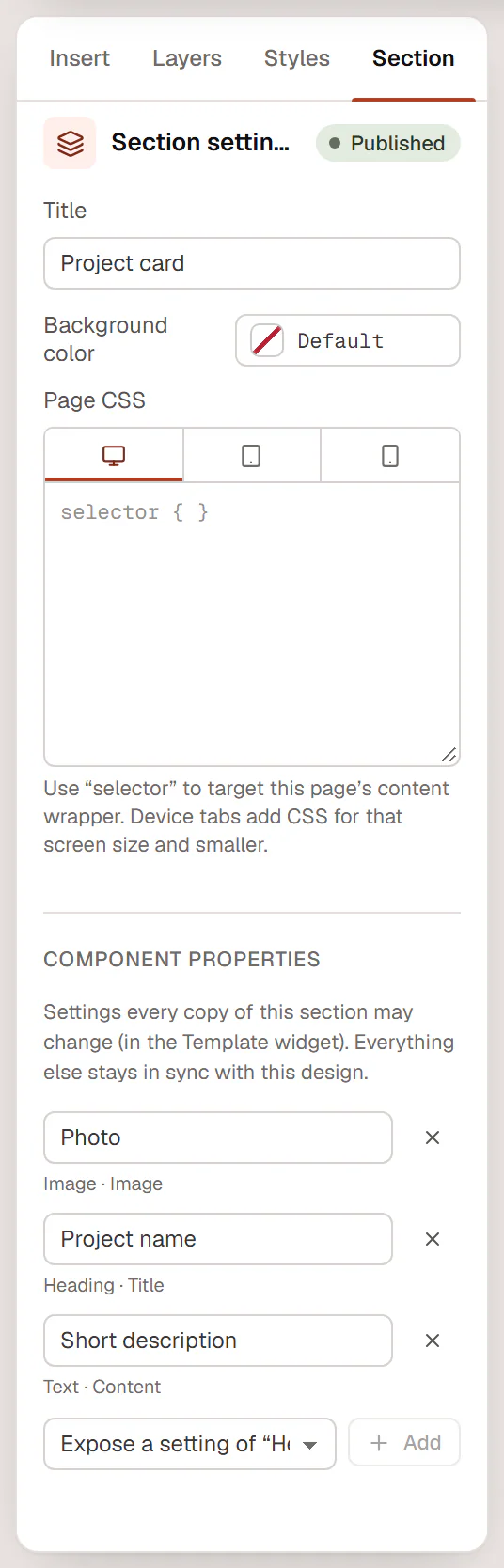
Click the Section tab in the left panel. Under Component properties it says: Settings every copy of this section may change (in the Template widget). Everything else stays in sync with this design.
Expose a setting
Select an element in the section, for example the heading. Pick a setting in Expose a setting of “Heading”…, such as Title, and click Add. Repeat for the image, the text, a button link, and so on.
Name the properties
Give each property a clear label, such as Project name or Photo. This is the label people see when they fill in a copy. Click × to remove a property.
Publish the section
Click Update (or Publish) to save the section.
You can expose Content settings such as texts, rich text, images, galleries, links, icons, numbers, choices, switches and colors, up to 60 per section.
Place a component and change its content
- On a page, add the Template widget (in the Layout group of the Insert panel).
- In Section template, choose your section.
- Under Content of this copy, fill in the properties for this copy. Each field shows the section's own value as a placeholder; leave a field empty to keep it.
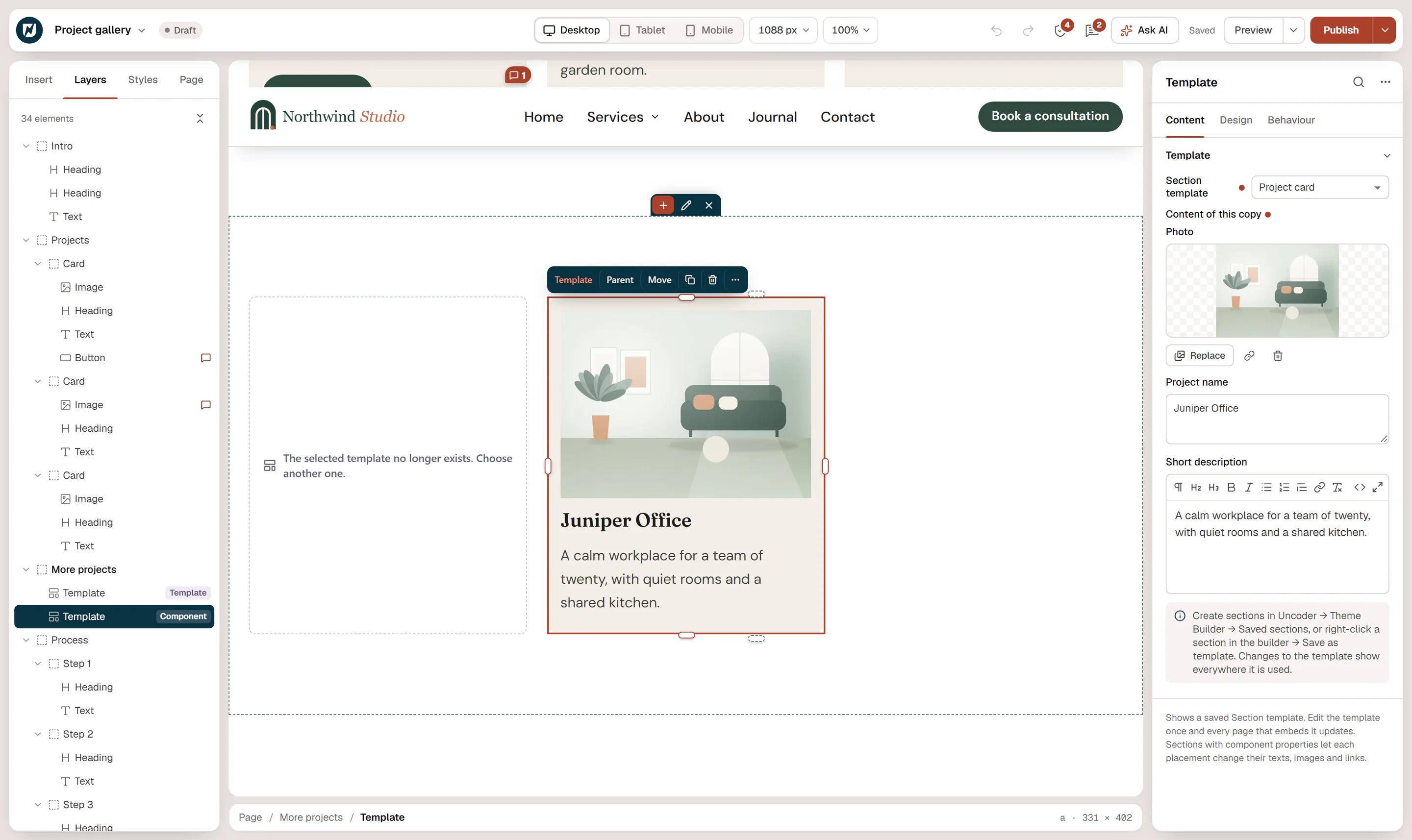
In Layers, a Template widget with its own content is marked Component; one without is marked Template.
Update all copies
Open the saved section (click Edit template on the canvas bar of any copy; it opens in a new tab), change the design and click Update. Every copy on every page shows the new design, with its own content kept.
If you remove a property, copies that filled it in go back to the section's value.
Good to know
- Only published sections show on the live site. A draft section shows in the editor only, marked not published.
- The content of a copy is the same on every device.
- A section without properties shows the same content everywhere. The Template widget then says: This section has no component properties: every copy shows the same content.
- To place an independent copy that you can change freely, insert the saved section from Insert → Sections instead. It is copied into the page and no longer linked to the original.