Loop filter
Let visitors filter and sort a loop grid by category, search or other fields.
The Loop Filter widget adds category buttons, a dropdown, checkboxes, a search box or a sort menu above a Loop Grid or a Posts widget. When a visitor picks a filter, the grid updates in place without reloading the page, and the address bar changes so the filtered view can be shared, bookmarked and reached with the browser's Back button.
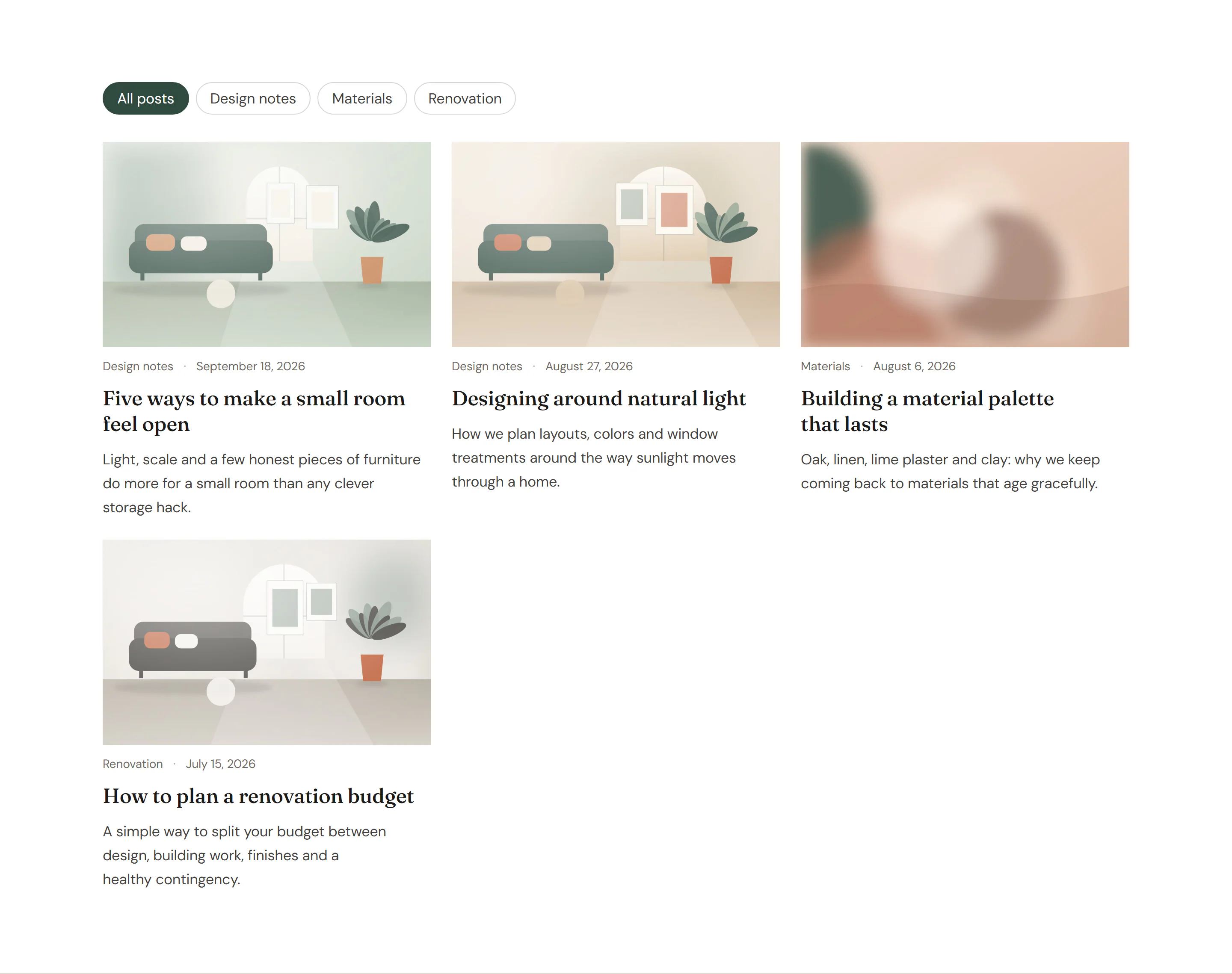
Add a filter to a grid
Add the grid first
Place a Loop Grid (or a Posts widget) on the page and set its query to Custom query. See Loop grid & carousel.
Add the Loop Filter
From Insert, drag Loop Filter above the grid. It is in the Site & theme group.
Choose what it filters by
In Content → Filter, pick Filter by: Category, tag or taxonomy, Search or Sort order, and set the options below.
Check it on the live site
Filters work on the live page and in the preview, not on the editor canvas.
To offer several ways to filter, add several Loop Filter widgets, for example category buttons and a search box. They all work together on the same grid: choosing a category keeps the search text, and the other way round.
Filter settings
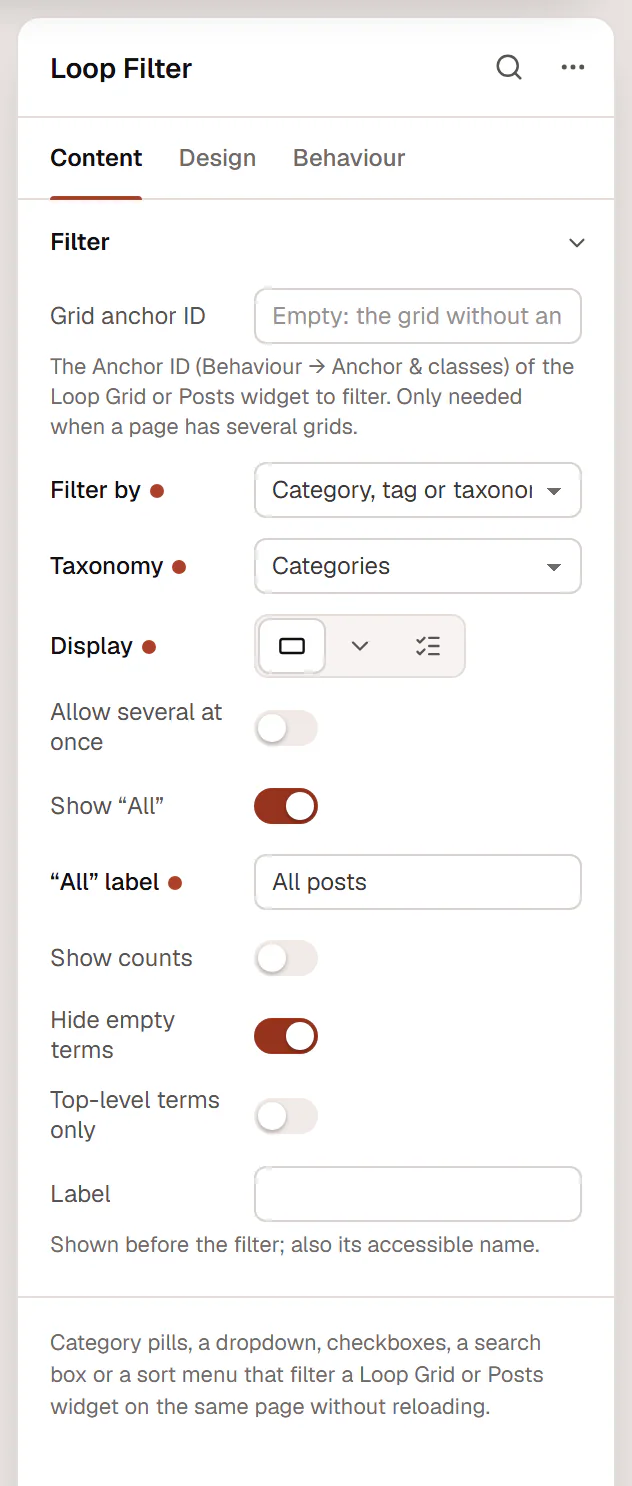
| Setting | What it does |
|---|---|
| Grid anchor ID | Which grid to filter. Leave it empty when the page has a single grid. With several grids, give the grid an Anchor ID in Behaviour → Anchor & classes and type the same ID here. |
| Filter by | Category, tag or taxonomy, Search or Sort order. |
| Taxonomy | Which terms to list: Categories, Tags or a public custom taxonomy. |
| Display | Buttons, Dropdown or Checkboxes. |
| Allow several at once | Buttons only: visitors can turn on several terms. Checkboxes always allow several. |
| Show “All” | Adds a first button or option that clears the filter. Not used with checkboxes. |
| “All” label | Text of that option ("All" by default), for example "All posts". |
| Show counts | Shows the number of posts next to each term. |
| Hide empty terms | Leaves out terms without posts. On by default. |
| Top-level terms only | Leaves out child categories. |
| Placeholder | Search only: the hint in the empty search box ("Search…" by default). |
| Sort options | Sort only: which orders the menu offers: Newest first, Oldest first, Title A–Z, Title Z–A, Recently updated, Most commented, Custom order. The menu always starts with Default order. |
| Label | Text shown before the filter, also read by screen readers. |
The Design tab sets the alignment, gap, typography and colors of the buttons and fields, including the Active text and Active background of the selected button, plus radius and padding.
How visitors use it
- Buttons are links: clicking one shows only that category. With Allow several at once, each click adds or removes a term.
- Dropdown, Checkboxes and Sort order update the grid as soon as the choice changes.
- Search updates the grid shortly after the visitor stops typing, or when they press Enter.
- Filtering always goes back to the first page of the grid.
Every filter works without JavaScript too: the page then reloads with the filter applied.
The filter works with every query source. On an archive (a grid set to Current query (archives)), it narrows the archive's own posts: for example a tag filter on a category page shows the posts of that category with that tag.